> ## Documentation Index
> Fetch the complete documentation index at: https://flightdeck.saad.sh/llms.txt
> Use this file to discover all available pages before exploring further.
# Guide
> Install, configure, and use FlightDeck.
This Guide is designed to be read from top to bottom as a whole.
You can skip parts that are obvious.
## Installation
### Homebrew installation (Preferred)
[Homebrew](https://brew.sh/) is a package manager for macOS
```bash theme={null}
brew install --cask saadjs/tap/flightdeck
```
The canonical `flightdeck` cask follows the latest published AeroSpace release, including upstream beta releases.
Its cask version preserves the upstream release identity (for example, `0.21.3-Beta`), while the macOS app
uses the numeric core (`0.21.3`) required by `CFBundleShortVersionString`.
All FlightDeck releases are Developer ID signed, notarized by Apple, and stapled.
*(Optional)* You might need to configure your shell to enable completion provided by homebrew packages: [https://docs.brew.sh/Shell-Completion](https://docs.brew.sh/Shell-Completion)
FlightDeck provides bash, fish and zsh completions.
### Manual installation
1. Download the latest available zip from [the FlightDeck releases page](https://github.com/saadjs/FlightDeck/releases)
2. Unpack zip
3. Put unpacked `FlightDeck-v$VERSION/FlightDeck.app` to `/Applications`
4. Put unpacked `FlightDeck-v$VERSION/bin/flightdeck` anywhere to `$PATH`
(The step is optional. It is only needed if you want to be able to interact with FlightDeck from CLI)
FlightDeck releases are Developer ID signed, notarized by Apple, and stapled.
On first launch, macOS still shows the standard confirmation for an app downloaded from the Internet.
## Configuring FlightDeck
### Custom config location
FlightDeck tries to find the custom config in four locations, in this order:
1. `~/.flightdeck.toml`
2. `${XDG_CONFIG_HOME}/flightdeck/flightdeck.toml`
3. `~/.aerospace.toml`
4. `${XDG_CONFIG_HOME}/aerospace/aerospace.toml`
(environment variable `XDG_CONFIG_HOME` fallbacks to `~/.config` if the variable is not presented)
A `flightdeck.toml` always takes precedence over an `aerospace.toml`: if any FlightDeck config exists,
the AeroSpace locations are ignored. If two configs are found *within the same tier* (for example both
`~/.flightdeck.toml` and `${XDG_CONFIG_HOME}/flightdeck/flightdeck.toml`) then the ambiguity is reported.
The AeroSpace-compatible paths are intentionally retained so existing configurations continue to work unchanged.
Commands inside the TOML config also remain unchanged.
Only terminal invocations use the `flightdeck` executable instead of `aerospace`.
FlightDeck does not install an `aerospace` CLI alias, and FlightDeck and AeroSpace should not run simultaneously.
### Config samples
Please see the following config samples:
* [The default config](#default-config)
* [i3 like config](/goodies#i3-like-config)
* [https://github.com/search?q=path%3A\*aerospace.toml\&type=code\[Search](https://github.com/search?q=path%3A*aerospace.toml\&type=code\[Search) for configs by other users on GitHub] for inspiration
FlightDeck uses TOML format for the config.
TOML is easy to read, and it supports comments.
See [TOML spec for more info](https://toml.io/en/v1.0.0)
### Default config
The default config is part of the documentation, it contains all trivial configuration keys with comments.
Please read the default config!
Non-trivial configuration options are mentioned further in this guide.
If no custom config is found, FlightDeck will load the default config.
If the key is omitted in the custom config, it falls back to the value in the default config, unless it's stated otherwise for the specific keys. Namely:
* `mode.*.binding`. It falls back to the empty TOML table. Your config is the source of truth for keyboard bindings. You must explicitly mention all the keyboard bindings and [binding modes](#binding-modes) in your config.
* `on-focused-monitor-changed`. It falls back to the empty TOML array.
* `exec` TOML table. See: [exec environment variables](#exec-environment-variables) (It's so boring and verbose, I don't even want to mention it in the `default-config.toml`)
Rule of thumb: all the "scalar like" values always fall back to the default config. All the "vector like" values fall back to the empty TOML array or table.
That allows you to keep your config tidy and clean from trivial config keys for which you like the default values.
You can bootstrap your custom config by copying the default config from the app installation -
```shell theme={null}
cp /Applications/FlightDeck.app/Contents/Resources/default-config.toml ~/.aerospace.toml
```
[Download default-config.toml](config-examples/default-config.toml)
```toml theme={null}
# Place a copy of this config to ~/.aerospace.toml
# After that, you can edit ~/.aerospace.toml to your liking
#
# FlightDeck intentionally preserves AeroSpace's config paths and syntax.
# Existing AeroSpace configs and the upstream documentation links below remain applicable.
# Config version for compatibility and deprecations
# Fallback value (if you omit the key): config-version = 1
config-version = 2
# You can use it to add commands that run after FlightDeck startup.
# Available commands : https://flightdeck.saad.sh/commands
after-startup-command = []
# Start FlightDeck at login
start-at-login = false
# Automatically reload the config when the config file is saved
# After setting this to true, reload once manually to start the auto-reloading
auto-reload-config = false
# Normalizations. See: https://flightdeck.saad.sh/guide#normalization
enable-normalization-flatten-containers = true
enable-normalization-opposite-orientation-for-nested-containers = true
# See: https://flightdeck.saad.sh/guide#layouts
# The 'accordion-padding' specifies the size of accordion padding
# You can set 0 to disable the padding feature
accordion-padding = 30
# Possible values: tiles|accordion
default-root-container-layout = 'tiles'
# Possible values: horizontal|vertical|auto
# 'auto' means: wide monitor (anything wider than high) gets horizontal orientation,
# tall monitor (anything higher than wide) gets vertical orientation
default-root-container-orientation = 'auto'
# Mouse follows focus when focused monitor changes
# Drop it from your config, if you don't like this behavior
# See https://flightdeck.saad.sh/guide#on-focus-changed-callbacks
# See https://flightdeck.saad.sh/commands#move-mouse
# Fallback value (if you omit the key): on-focused-monitor-changed = []
on-focused-monitor-changed = ['move-mouse monitor-lazy-center']
# You can effectively turn off macOS "Hide application" (cmd-h) feature by toggling this flag
# Useful if you don't use this macOS feature, but accidentally hit cmd-h or cmd-alt-h key
# Also see: https://flightdeck.saad.sh/goodies#disable-hide-app
automatically-unhide-macos-hidden-apps = false
# Focus another window after the focused app's final managed window closes
# Set to false to keep the windowless app active so cmd-q can quit it
# Fallback value (if you omit the key): focus-next-window-on-window-closed = true
focus-next-window-on-window-closed = true
# List of workspaces that should stay alive even when they contain no windows,
# even when they are invisible.
# This config option is only available since 'config-version = 2'
# Fallback value (if you omit the key): persistent-workspaces = []
persistent-workspaces = ["1", "2", "3", "4", "5", "6", "7", "8", "9", "A", "B",
"C", "D", "E", "F", "G", "I", "M", "N", "O", "P", "Q",
"R", "S", "T", "U", "V", "W", "X", "Y", "Z"]
# A callback that runs every time binding mode changes
# See: https://flightdeck.saad.sh/guide#binding-modes
# See: https://flightdeck.saad.sh/commands#mode
on-mode-changed = []
# Possible values: (qwerty|dvorak|colemak)
# See https://flightdeck.saad.sh/guide#key-mapping
[key-mapping]
preset = 'qwerty'
# Gaps between windows (inner-*) and between monitor edges (outer-*).
# Possible values:
# - Constant: gaps.outer.top = 8
# - Per monitor: gaps.outer.top = [{ monitor.main = 16 }, { monitor."some-pattern" = 32 }, 24]
# In this example, 24 is a default value when there is no match.
# Monitor pattern is the same as for 'workspace-to-monitor-force-assignment'.
# See:
# https://flightdeck.saad.sh/guide#assign-workspaces-to-monitors
[gaps]
inner.horizontal = 0
inner.vertical = 0
outer.left = 0
outer.bottom = 0
outer.top = 0
outer.right = 0
# 'main' binding mode declaration
# See: https://flightdeck.saad.sh/guide#binding-modes
# 'main' binding mode must be always presented
# Fallback value (if you omit the key): mode.main.binding = {}
[mode.main.binding]
# All possible keys:
# - Letters. a, b, c, ..., z
# - Numbers. 0, 1, 2, ..., 9
# - Keypad numbers. keypad0, keypad1, keypad2, ..., keypad9
# - F-keys. f1, f2, ..., f20
# - Special keys. minus, equal, period, comma, slash, backslash, quote, semicolon,
# backtick, leftSquareBracket, rightSquareBracket, space, enter, esc,
# backspace, tab, pageUp, pageDown, home, end, forwardDelete,
# sectionSign (ISO keyboards only, european keyboards only)
# - Keypad special. keypadClear, keypadDecimalMark, keypadDivide, keypadEnter, keypadEqual,
# keypadMinus, keypadMultiply, keypadPlus
# - Arrows. left, down, up, right
# All possible modifiers: cmd, alt, ctrl, shift
# All possible commands: https://flightdeck.saad.sh/commands
# See: https://flightdeck.saad.sh/commands#exec-and-forget
# You can uncomment the following lines to open up terminal with alt + enter shortcut
# (like in i3)
# alt-enter = '''exec-and-forget osascript -e '
# tell application "Terminal"
# do script
# activate
# end tell'
# '''
# See: https://flightdeck.saad.sh/commands#layout
alt-slash = 'layout tiles horizontal vertical'
alt-comma = 'layout accordion horizontal vertical'
# See: https://flightdeck.saad.sh/commands#focus
alt-h = 'focus left'
alt-j = 'focus down'
alt-k = 'focus up'
alt-l = 'focus right'
# See: https://flightdeck.saad.sh/commands#move
alt-shift-h = 'move left'
alt-shift-j = 'move down'
alt-shift-k = 'move up'
alt-shift-l = 'move right'
# See: https://flightdeck.saad.sh/commands#resize
alt-minus = 'resize smart -50'
alt-equal = 'resize smart +50'
# See: https://flightdeck.saad.sh/commands#workspace
alt-1 = 'workspace 1'
alt-2 = 'workspace 2'
alt-3 = 'workspace 3'
alt-4 = 'workspace 4'
alt-5 = 'workspace 5'
alt-6 = 'workspace 6'
alt-7 = 'workspace 7'
alt-8 = 'workspace 8'
alt-9 = 'workspace 9'
alt-a = 'workspace A' # In your config, you can drop workspace bindings that you don't need
alt-b = 'workspace B'
alt-c = 'workspace C'
alt-d = 'workspace D'
alt-e = 'workspace E'
alt-f = 'workspace F'
alt-g = 'workspace G'
alt-i = 'workspace I'
alt-m = 'workspace M'
alt-n = 'workspace N'
alt-o = 'workspace O'
alt-p = 'workspace P'
alt-q = 'workspace Q'
alt-r = 'workspace R'
alt-s = 'workspace S'
alt-t = 'workspace T'
alt-u = 'workspace U'
alt-v = 'workspace V'
alt-w = 'workspace W'
alt-x = 'workspace X'
alt-y = 'workspace Y'
alt-z = 'workspace Z'
# See: https://flightdeck.saad.sh/commands#move-node-to-workspace
alt-shift-1 = 'move-node-to-workspace 1'
alt-shift-2 = 'move-node-to-workspace 2'
alt-shift-3 = 'move-node-to-workspace 3'
alt-shift-4 = 'move-node-to-workspace 4'
alt-shift-5 = 'move-node-to-workspace 5'
alt-shift-6 = 'move-node-to-workspace 6'
alt-shift-7 = 'move-node-to-workspace 7'
alt-shift-8 = 'move-node-to-workspace 8'
alt-shift-9 = 'move-node-to-workspace 9'
alt-shift-a = 'move-node-to-workspace A'
alt-shift-b = 'move-node-to-workspace B'
alt-shift-c = 'move-node-to-workspace C'
alt-shift-d = 'move-node-to-workspace D'
alt-shift-e = 'move-node-to-workspace E'
alt-shift-f = 'move-node-to-workspace F'
alt-shift-g = 'move-node-to-workspace G'
alt-shift-i = 'move-node-to-workspace I'
alt-shift-m = 'move-node-to-workspace M'
alt-shift-n = 'move-node-to-workspace N'
alt-shift-o = 'move-node-to-workspace O'
alt-shift-p = 'move-node-to-workspace P'
alt-shift-q = 'move-node-to-workspace Q'
alt-shift-r = 'move-node-to-workspace R'
alt-shift-s = 'move-node-to-workspace S'
alt-shift-t = 'move-node-to-workspace T'
alt-shift-u = 'move-node-to-workspace U'
alt-shift-v = 'move-node-to-workspace V'
alt-shift-w = 'move-node-to-workspace W'
alt-shift-x = 'move-node-to-workspace X'
alt-shift-y = 'move-node-to-workspace Y'
alt-shift-z = 'move-node-to-workspace Z'
# See: https://flightdeck.saad.sh/commands#workspace-back-and-forth
alt-tab = 'workspace-back-and-forth'
# See: https://flightdeck.saad.sh/commands#move-workspace-to-monitor
alt-shift-tab = 'move-workspace-to-monitor --wrap-around next'
# See: https://flightdeck.saad.sh/commands#mode
alt-shift-semicolon = 'mode service'
# 'service' binding mode declaration.
# See: https://flightdeck.saad.sh/guide#binding-modes
[mode.service.binding]
esc = ['reload-config', 'mode main']
r = ['flatten-workspace-tree', 'mode main'] # reset layout
f = ['layout floating tiling', 'mode main'] # Toggle between floating and tiling layout
backspace = ['close-all-windows-but-current', 'mode main']
# sticky is not yet supported https://github.com/nikitabobko/AeroSpace/issues/2
#s = ['layout sticky tiling', 'mode main']
alt-shift-h = ['join-with left', 'mode main']
alt-shift-j = ['join-with down', 'mode main']
alt-shift-k = ['join-with up', 'mode main']
alt-shift-l = ['join-with right', 'mode main']
```
### Binding modes
You can create multiple sets of bindings by creating different binding modes.
When you switch to a different binding mode, all the bindings from the current mode are deactivated, and only the bindings specified in the new mode become active.
The initial binding mode that FlightDeck starts out with is "main".
This feature is absolutely identical to the one
[in i3](https://i3wm.org/docs/userguide.html#binding_modes)
Working with binding modes consists of two parts:
1. defining a binding to switch to the binding mode and 2. declaring the binding mode itself.
```toml theme={null}
[mode.main.binding] # Declare 'main' binding mode
alt-r = 'mode resize' # 1. Define a binding to switch to 'resize' mode
[mode.resize.binding] # 2. Declare 'resize' binding mode
minus = 'resize smart -50'
equal = 'resize smart +50'
```
### Commands
Commands are the thing you use to manipulate FlightDeck and query its state.
There are two ways on how you can use commands:
1. Bind keys to run FlightDeck commands. Example:
```toml theme={null}
[mode.main.binding]
# Bind alt-1 key to switch to workspace 1
alt-1 = 'workspace 1'
# Or bind a sequence of commands
alt-shift-1 = ['move-node-to-workspace 1', 'workspace 1']
```
1. Run commands in CLI. Open up a Terminal.app and type:
```bash theme={null}
flightdeck workspace 1
```
For the list of available commands see: /commands
### Keyboard layouts and key mapping
By default, key bindings in the config are perceived as `qwerty` layout.
If you use different layout, different alphabet, or you just want to have a fancy alias for the existing key, you can use `key-mapping.key-notation-to-key-code`.
```toml theme={null}
# Define my fancy unicorn key notation
[key-mapping.key-notation-to-key-code]
unicorn = 'u'
[mode.main.binding]
alt-unicorn = 'workspace wonderland' # (⁀ᗢ⁀)
```
* For `dvorak` and `colemak` users, FlightDeck offers preconfigured presets.
```toml theme={null}
[key-mapping]
preset = 'dvorak' # or 'colemak'
```
### exec-\* Environment Variables
You can configure environment variables of `exec-*` commands and callbacks (such as [exec-and-forget](/commands#exec-and-forget), [exec-on-workspace-change-callback](#exec-on-workspace-change-callback))
* `exec.inherit-env-vars = true` configures whether inherit environment variables of `FlightDeck.app` or not. (The default is `true`)
* You can override env variables with the following syntax:
```toml theme={null}
[exec.env-vars]
PATH = '${HOME}/bin:${PATH}'
```
Environment variable substitution is supported in form of `${ENV_VAR}`
* You can inspect what is the end result of environment variables using [`list-exec-env-vars` command](/commands#list-exec-env-vars)
* GUI apps on macOS don’t have Homebrew’s prefix in their `PATH` by default ([docs.brew.sh](https://docs.brew.sh/FAQ#my-mac-apps-dont-find-homebrew-utilities)).
That's why unless you override `exec` section in your config, FlightDeck falls back to the following `exec` configuration:
```toml theme={null}
[exec]
inherit-env-vars = true
[exec.env-vars]
PATH = '/opt/homebrew/bin:/opt/homebrew/sbin:${PATH}'
```
## Tree
FlightDeck stores all windows and containers in a tree.
FlightDeck tree tiling model is [inspired by i3](https://i3wm.org/docs/userguide.html#tree).
*Definition.* Each non-leaf node is called a "Container"
WARNING: i3 has a different terminology.
"container" in i3 is the same as "node" in FlightDeck.
* Each workspace contains its own single root node
* Each container can contain arbitrary number of children nodes
* Windows are the only possible leaf nodes. Windows contain zero children nodes
* Every container has two properties:
1. [Layout](#layouts) (Possible values: `tiles`, `accordion`)
2. Orientation (Possible values: `horizontal`, `vertical`)
When we say "layout of the window", we refer to the layout of the window’s parent container.
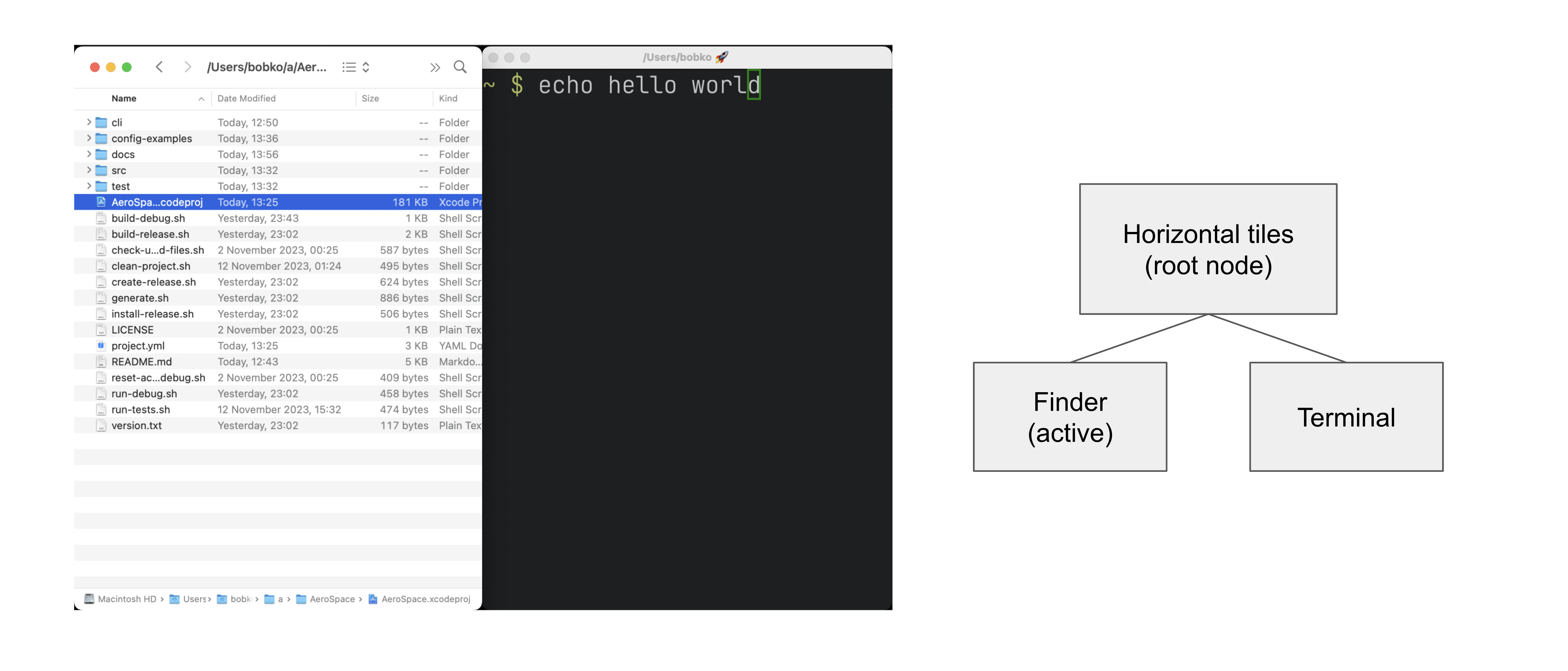
It’s easier to understand tree tiling model by looking at examples
.Simple tree structure. Two windows side-by-side
 .Complex tree structure
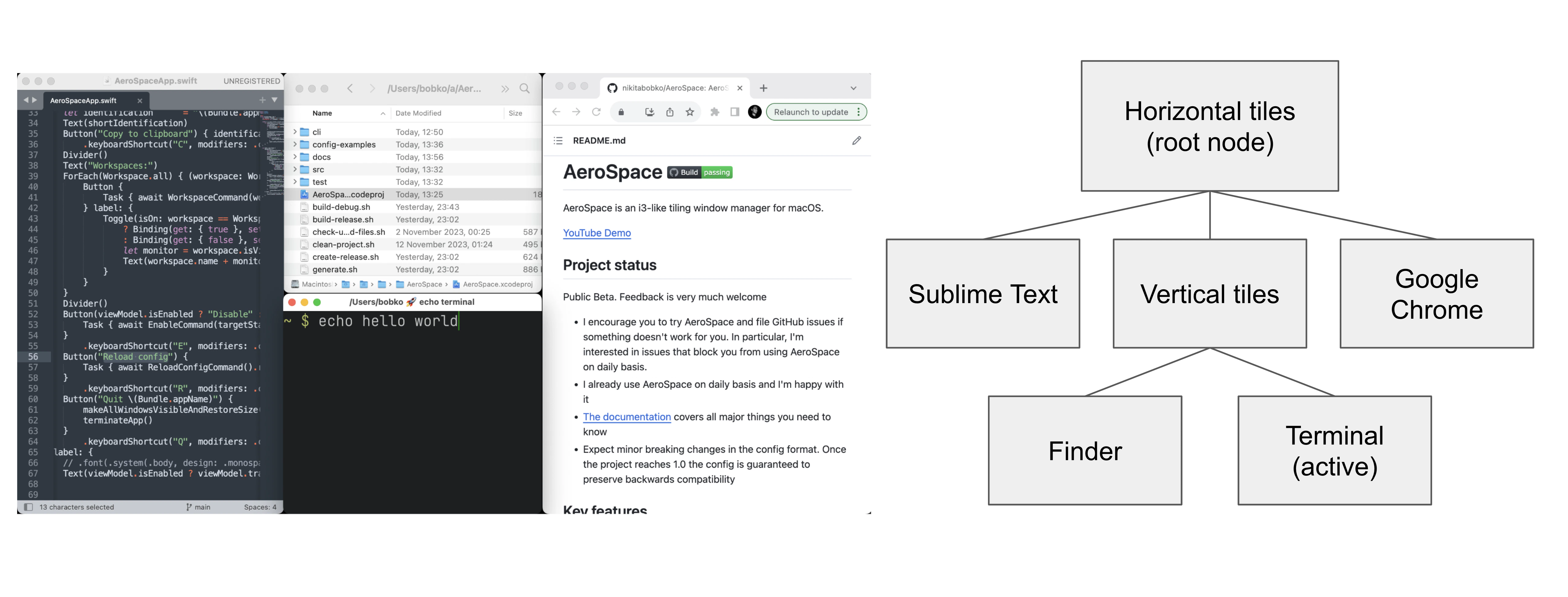 You can nest containers as deeply as you want to.
You can navigate in the tree in 4 possible cardinal directions (left, down, up, right).
You use [focus command](/commands#focus) to do that.
The tree structure can be changed with three commands:
1. [move](/commands#move)
2. [join-with](/commands#join-with)
3. [split](/commands#split) (it's for compatibility with i3. Please prefer `join-with` over `split`)
### Layouts
In total, FlightDeck provides 4 possible layouts:
* `h_tiles` horizontal tiles (in i3, it’s called "horizontal split")
* `v_tiles` vertical tiles (in i3, it’s called "vertical split")
* `h_accordion` horizontal accordion (analog of i3’s "tabbed layout")
* `v_accordion` vertical accordion (analog of i3’s "stacked layout")
[From the previous section](#tree), you’re already familiar with the `tiles` layout.
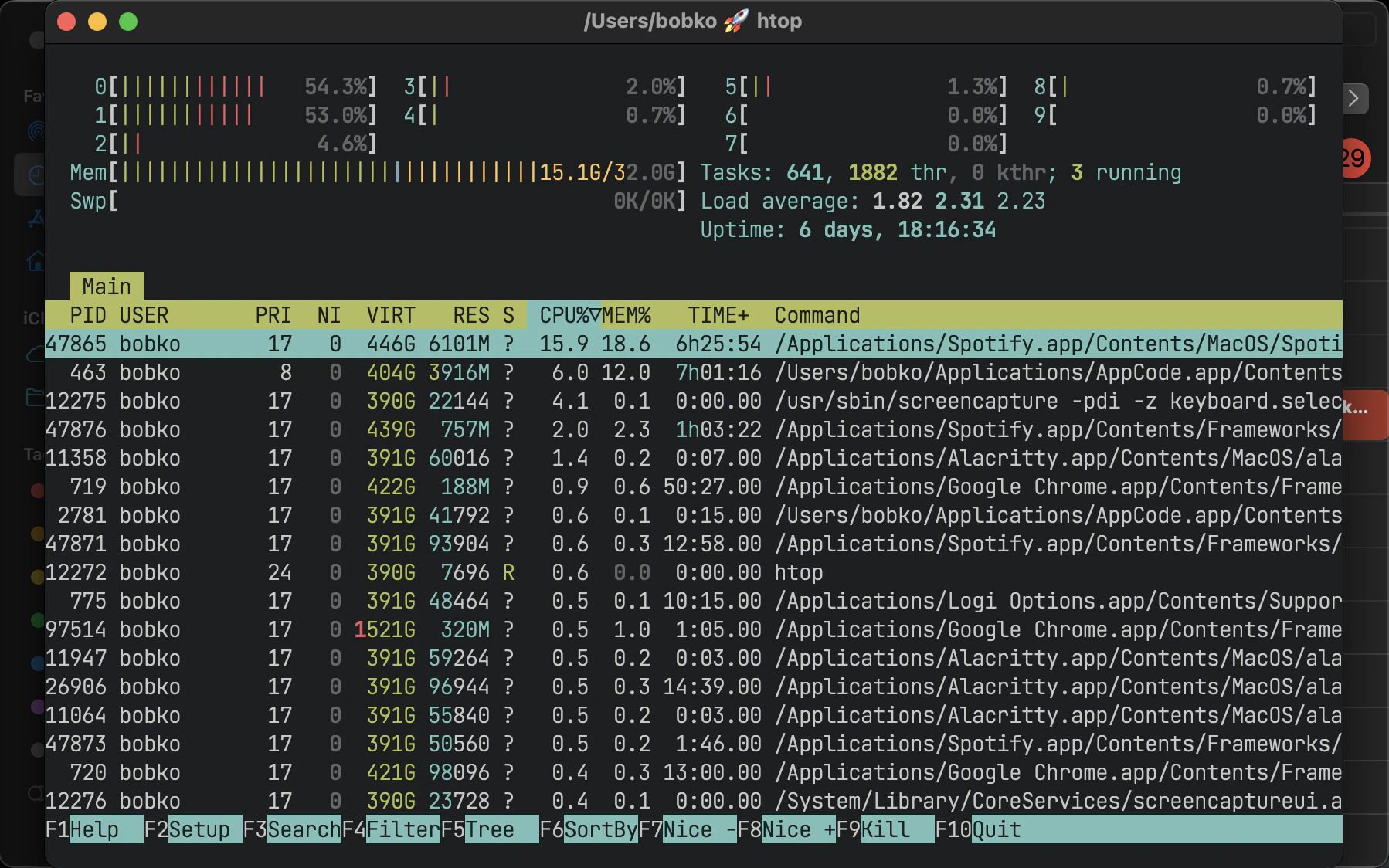
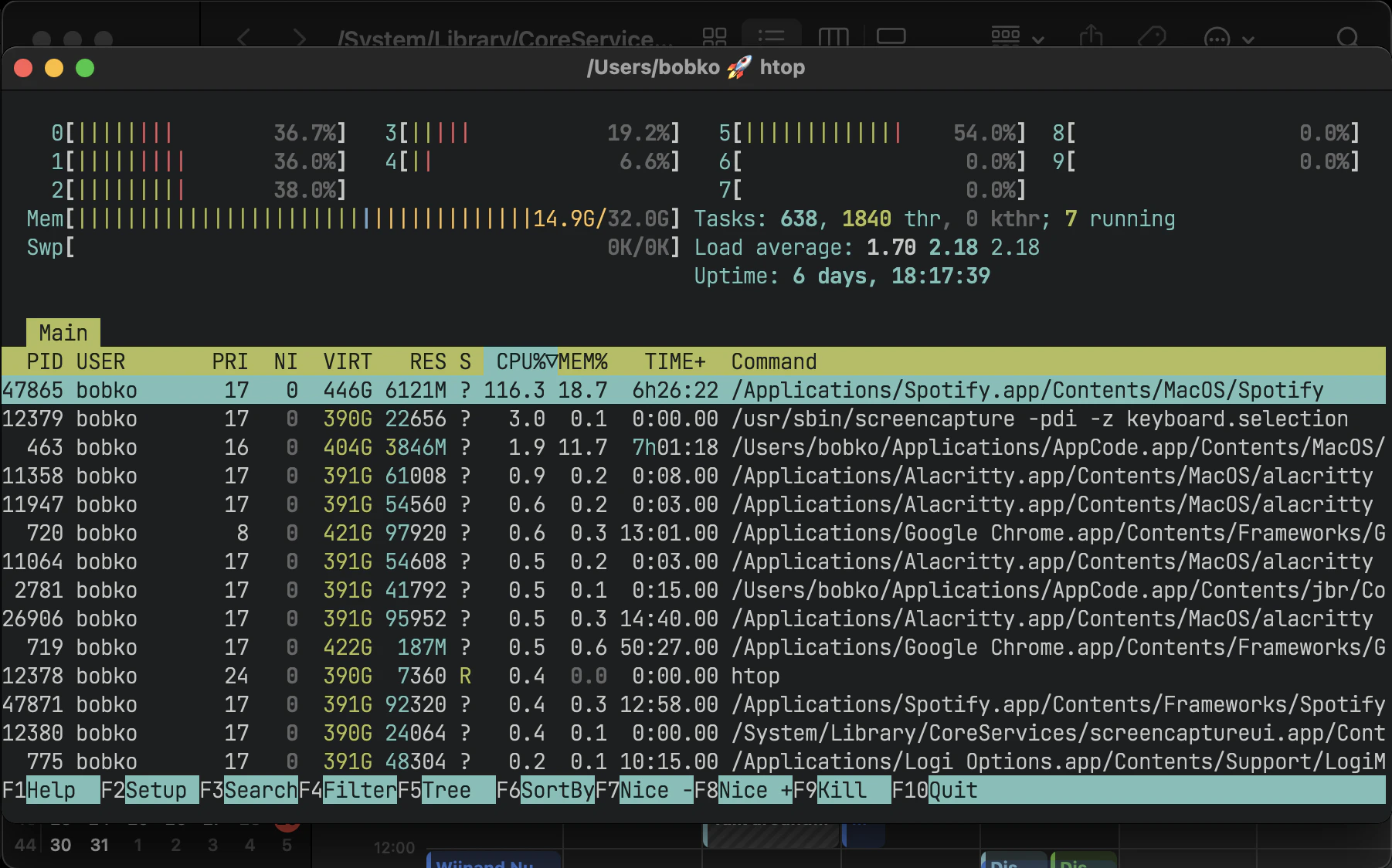
Accordion is a layout where windows are placed on top of each other.
* *The horizontal accordion* shows left and right paddings to visually indicate the presence of other windows in those directions.
* *The vertical accordion* shows top and bottom paddings to visually indicate the presence of other windows in those directions.
.Horizontal accordion
You can nest containers as deeply as you want to.
You can navigate in the tree in 4 possible cardinal directions (left, down, up, right).
You use [focus command](/commands#focus) to do that.
The tree structure can be changed with three commands:
1. [move](/commands#move)
2. [join-with](/commands#join-with)
3. [split](/commands#split) (it's for compatibility with i3. Please prefer `join-with` over `split`)
### Layouts
In total, FlightDeck provides 4 possible layouts:
* `h_tiles` horizontal tiles (in i3, it’s called "horizontal split")
* `v_tiles` vertical tiles (in i3, it’s called "vertical split")
* `h_accordion` horizontal accordion (analog of i3’s "tabbed layout")
* `v_accordion` vertical accordion (analog of i3’s "stacked layout")
[From the previous section](#tree), you’re already familiar with the `tiles` layout.
Accordion is a layout where windows are placed on top of each other.
* *The horizontal accordion* shows left and right paddings to visually indicate the presence of other windows in those directions.
* *The vertical accordion* shows top and bottom paddings to visually indicate the presence of other windows in those directions.
.Horizontal accordion
 .Vertical accordion
 Just like in a `tiles` layout, you can use the [focus](/commands#focus) command to navigate an accordion layout.
You can navigate the windows in an `h_accordion` by using the `focus (left|right)` command.
While in a `v_accordion`, you can navigate the windows using the `focus (up|down)` command.
Accordion padding is configurable via `accordion-padding` option.
### Normalization
By default, FlightDeck does two types of tree normalizations:
1. Containers that have only one child are "flattened".
The root container is an exception, it is allowed to have a single window child.
Configured by `enable-normalization-flatten-containers`
2. Containers that nest into each other must have opposite orientations.
Configured by `enable-normalization-opposite-orientation-for-nested-containers`
*Example 1*
According to the first normalization, such layout isn’t possible:
```text theme={null}
h_tiles (root node)
└── v_tiles
└── window 1
```
it will be immediately transformed into
```text theme={null}
v_tiles (new root node)
└── window 1
```
*Example 2*
According to the second normalization, such layout isn’t possible:
```text theme={null}
h_tiles
├── window 1
└── h_tiles
├── window 2
└── window 3
```
it will be immediately transformed into
```text theme={null}
h_tiles
├── window 1
└── v_tiles
├── window 2
└── window 3
```
Normalizations make it easier to understand the tree structure by looking at how windows are placed on the screen.
Though you can disable normalizations by placing these lines to your config:
```toml theme={null}
enable-normalization-flatten-containers = false
enable-normalization-opposite-orientation-for-nested-containers = false
```
Unless you're hardcore i3 user who knows what they are doing, it's recommended to keep the normalizations enabled.
### Floating windows
Normally, floating windows are not considered to be part of the [tiling tree](#tree).
But it’s not the case with [focus](/commands#focus) command.
From [focus](/commands#focus) command perspective, floating windows are part of [tiling tree](#tree).
The floating window parent container is determined as the smallest tiling container that contains the center of the floating window.
This technique eliminates the need for an additional binding for focusing floating windows.
## Emulation of virtual workspaces
Native macOS Spaces have a lot of problems
* The animation for Spaces switching is slow
\*\* You can’t disable animation for Spaces switching (you can only make it slightly faster by turning on `Reduce motion` setting, but it’s suboptimal)
* You have a limit of Spaces (up to 16 Spaces with one monitor)
* You can’t create/delete/reorder Space and move windows between Spaces with hotkeys (you can only switch between Spaces with hotkeys)
* Apple doesn't provide public API to communicate with Spaces (create/delete/reorder/switch Space and move windows between Spaces)
Since Spaces are so hard to deal with, FlightDeck reimplements Spaces and calls them "Workspaces".
The idea is that if the workspace isn’t active then all of its windows are placed outside the visible area of the screen, in the bottom right or left corner.
Once you switch back to the workspace, (e.g. by the means of [workspace](/commands#workspace) command, or `cmd + tab`) windows are placed back to the visible area of the screen.
When you quit the FlightDeck or when the FlightDeck detects that it's about to crash, FlightDeck will place all windows back to the visible area of the screen.
FlightDeck shows the name of currently active workspace in its tray icon (top right corner), to give users a visual feedback on what workspace is currently active.
The intended workflow of using FlightDeck workspaces is to only have one macOS Space (or as many monitors you have, if `Displays have separate Spaces` is enabled) and don’t interact with macOS Spaces anymore.
For better or worse, macOS doesn’t allow to place windows outside the visible area entirely.
You will still be able to see a 1 pixel vertical line of "hidden" windows in the bottom right or left corner of your screen.
That means, that if FlightDeck crashes badly you will still be able to manually "unhide" the windows by dragging these few pixels to the center of the screen.
If you want to minimize the visibility of hidden windows, it's recommended to place Dock in the bottom (and additionally turn automatic hiding on)
### Proper monitor arrangement
Since FlightDeck needs a free space to hide windows in,
please make sure to arrange monitors in a way where *every monitor has free space in the bottom right or left corner.* (`System Settings -> Displays -> Arrange...`)
If you fail to arrange your monitors properly, you will see parts of hidden windows on other monitors.
.Bad monitor arrangement. Monitor 2 doesn't have free space in either of the bottom corners
Just like in a `tiles` layout, you can use the [focus](/commands#focus) command to navigate an accordion layout.
You can navigate the windows in an `h_accordion` by using the `focus (left|right)` command.
While in a `v_accordion`, you can navigate the windows using the `focus (up|down)` command.
Accordion padding is configurable via `accordion-padding` option.
### Normalization
By default, FlightDeck does two types of tree normalizations:
1. Containers that have only one child are "flattened".
The root container is an exception, it is allowed to have a single window child.
Configured by `enable-normalization-flatten-containers`
2. Containers that nest into each other must have opposite orientations.
Configured by `enable-normalization-opposite-orientation-for-nested-containers`
*Example 1*
According to the first normalization, such layout isn’t possible:
```text theme={null}
h_tiles (root node)
└── v_tiles
└── window 1
```
it will be immediately transformed into
```text theme={null}
v_tiles (new root node)
└── window 1
```
*Example 2*
According to the second normalization, such layout isn’t possible:
```text theme={null}
h_tiles
├── window 1
└── h_tiles
├── window 2
└── window 3
```
it will be immediately transformed into
```text theme={null}
h_tiles
├── window 1
└── v_tiles
├── window 2
└── window 3
```
Normalizations make it easier to understand the tree structure by looking at how windows are placed on the screen.
Though you can disable normalizations by placing these lines to your config:
```toml theme={null}
enable-normalization-flatten-containers = false
enable-normalization-opposite-orientation-for-nested-containers = false
```
Unless you're hardcore i3 user who knows what they are doing, it's recommended to keep the normalizations enabled.
### Floating windows
Normally, floating windows are not considered to be part of the [tiling tree](#tree).
But it’s not the case with [focus](/commands#focus) command.
From [focus](/commands#focus) command perspective, floating windows are part of [tiling tree](#tree).
The floating window parent container is determined as the smallest tiling container that contains the center of the floating window.
This technique eliminates the need for an additional binding for focusing floating windows.
## Emulation of virtual workspaces
Native macOS Spaces have a lot of problems
* The animation for Spaces switching is slow
\*\* You can’t disable animation for Spaces switching (you can only make it slightly faster by turning on `Reduce motion` setting, but it’s suboptimal)
* You have a limit of Spaces (up to 16 Spaces with one monitor)
* You can’t create/delete/reorder Space and move windows between Spaces with hotkeys (you can only switch between Spaces with hotkeys)
* Apple doesn't provide public API to communicate with Spaces (create/delete/reorder/switch Space and move windows between Spaces)
Since Spaces are so hard to deal with, FlightDeck reimplements Spaces and calls them "Workspaces".
The idea is that if the workspace isn’t active then all of its windows are placed outside the visible area of the screen, in the bottom right or left corner.
Once you switch back to the workspace, (e.g. by the means of [workspace](/commands#workspace) command, or `cmd + tab`) windows are placed back to the visible area of the screen.
When you quit the FlightDeck or when the FlightDeck detects that it's about to crash, FlightDeck will place all windows back to the visible area of the screen.
FlightDeck shows the name of currently active workspace in its tray icon (top right corner), to give users a visual feedback on what workspace is currently active.
The intended workflow of using FlightDeck workspaces is to only have one macOS Space (or as many monitors you have, if `Displays have separate Spaces` is enabled) and don’t interact with macOS Spaces anymore.
For better or worse, macOS doesn’t allow to place windows outside the visible area entirely.
You will still be able to see a 1 pixel vertical line of "hidden" windows in the bottom right or left corner of your screen.
That means, that if FlightDeck crashes badly you will still be able to manually "unhide" the windows by dragging these few pixels to the center of the screen.
If you want to minimize the visibility of hidden windows, it's recommended to place Dock in the bottom (and additionally turn automatic hiding on)
### Proper monitor arrangement
Since FlightDeck needs a free space to hide windows in,
please make sure to arrange monitors in a way where *every monitor has free space in the bottom right or left corner.* (`System Settings -> Displays -> Arrange...`)
If you fail to arrange your monitors properly, you will see parts of hidden windows on other monitors.
.Bad monitor arrangement. Monitor 2 doesn't have free space in either of the bottom corners
 .Good monitor arrangement. Every monitor has free space in either of the bottom corners
 .Bad monitor arrangement. Monitor 1 doesn't have free space in either of the bottom corners
 .Good monitor arrangement. Every monitor has free space in either of the bottom corners
 ### A note on mission control
For some reason, mission control doesn't like that FlightDeck puts a lot of windows in the bottom right corner of the screen.
Mission control shows windows too small even when there is enough space to show them bigger.
There is a workaround. You can enable `Group windows by application` setting:
```bash theme={null}
defaults write com.apple.dock expose-group-apps -bool true && killall Dock
```
(or in System Settings: `System Settings -> Desktop & Dock -> Group windows by application`). For whatever weird reason, it helps.
### A note on '`Displays have separate Spaces`'
There is an observation that macOS works better and more stable if you disable `Displays have separate Spaces`. (It's enabled by default)
People report all sorts of weird issues related to focus and performance when this setting is enabled:
* Wrong window may receive focus in multi-monitor setup: [#101](https://github.com/nikitabobko/AeroSpace/issues/101) (Bug in Apple API)
* Wrong borderless Alacritty window may receive focus in *single monitor* setup: [#247](https://github.com/nikitabobko/AeroSpace/issues/247) (Bug in Apple API)
* Performance issues: [#333](https://github.com/nikitabobko/AeroSpace/issues/333)
* macOS randomly switches focus back: [#289](https://github.com/nikitabobko/AeroSpace/issues/289)
When `Displays have separate Spaces` is enabled,
moving windows between monitors causes windows to move between different Spaces which is not correctly handled by the public APIs FlightDeck uses,
apparently, these APIs are not aware about Spaces existence.
Spaces are just cursed in macOS. The less Spaces you have, the better macOS behaves.
| | | |
| ---------------------------------------------------------- | -------------------------------------------------------------------- | -------------------------------------------------------------------------------- |
| '`Displays have separate Spaces`' is enabled | '`Displays have separate Spaces`' is disabled | |
| Is it possible for window to span across several monitors? | ❌ No. macOS limitation | 👍 Yes |
| Overall stability and performance | ❌ Weird focus and performance issues may happen (see the list above) | 👍 Public Apple API are more stable (which in turn affects FlightDeck stability) |
| When the first monitor is in fullscreen | 👍 Second monitor operates independently | ❌ Second monitor is unusable black screen |
| macOS status bar ... | ... is displayed on both monitors | ... is displayed only on main monitor |
If you don't care about macOS native fullscreen in multi-monitor setup (which is itself clunky anyway, since it creates a separate Space instance),
I recommend disabling `Displays have separate Spaces`.
You can disable the setting by running:
```bash theme={null}
defaults write com.apple.spaces spans-displays -bool true && killall SystemUIServer
```
(or in System Settings: `System Settings -> Desktop & Dock -> Displays have separate Spaces`). Logout is required for the setting to take effect.
## Callbacks
### on-window-detected callback
You can use `on-window-detected` to run commands every time a new window is detected.
```toml theme={null}
[[on-window-detected]]
if = 'test %{app-bundle-id} = com.apple.systempreferences'
check-further-callbacks = true
run = ['layout floating', 'move-node-to-workspace S']
```
Callbacks are processed in declaration order. For each callback, FlightDeck runs its optional `if` command.
If `if` exits successfully—or is omitted—FlightDeck runs `run` and stops processing callbacks.
Set `check-further-callbacks = true` to continue processing later callbacks after a match.
The legacy `if.app-id`, `if.app-name-regex-substring`, `if.window-title-regex-substring`,
`if.workspace`, and `if.during-aerospace-startup` matcher keys remain supported for compatibility,
but new configurations should use an `if` command. The legacy startup matcher currently has no direct command equivalent.
There are several ways to find an app bundle ID:
* Take a look at the precompiled [list of Apple application IDs](/goodies#list-of-apple-application-ids)
* You can use [`flightdeck list-apps`](/commands#list-apps) CLI command to get IDs of running applications
* `mdls -name kMDItemCFBundleIdentifier -r /Applications/App.app`
IMPORTANT: Some windows initialize their title after the window appears, so conditions using `%{window-title}` may not work as expected for those windows.
Examples of automations:
* Assign apps on particular workspaces
```toml theme={null}
[[on-window-detected]]
if = 'test %{app-bundle-id} = org.alacritty'
run = 'move-node-to-workspace T' # mnemonics T - Terminal
[[on-window-detected]]
if = 'test %{app-bundle-id} = com.google.Chrome'
run = 'move-node-to-workspace W' # mnemonics W - Web browser
[[on-window-detected]]
if = 'test %{app-bundle-id} = com.jetbrains.intellij'
run = 'move-node-to-workspace I' # mnemonics I - IDE
```
* Make all windows float by default
```toml theme={null}
[[on-window-detected]]
check-further-callbacks = true
run = 'layout floating'
```
### on-focus-changed callbacks
You can track focus changes using the following callbacks: `on-focus-changed` and `on-focused-monitor-changed`.
* `on-focus-changed` is called every time focused window or workspace changes.
* `on-focused-monitor-changed` is called every time focused monitor changes.
A common use case for the callbacks is to implement "mouse follows focus" behavior. All you need is to combine the callback of your choice with [move-mouse command](/commands#move-mouse):
```toml theme={null}
on-focused-monitor-changed = ['move-mouse monitor-lazy-center'] # Mouse lazily follows focused monitor (default in i3)
# or
on-focus-changed = ['move-mouse window-lazy-center'] # Mouse lazily follows any focus (window or workspace)
```
You shouldn't rely on the order callbacks are called, since it's an implementation detail and can change from version to version.
The callbacks are "recursion resistant", which means that any focus change within the callback won't retrigger the callback.
Changing the focus within these callbacks is a bad idea anyway, and the way it's handled will probably change in future versions.
### exec-on-workspace-change callback
`exec-on-workspace-change` callback allows to run arbitrary process when focused workspace changes.
It may be useful for integrating with bars.
```toml theme={null}
# Notify Sketchybar about workspace change
exec-on-workspace-change = ['/bin/bash', '-c',
'sketchybar --trigger aerospace_workspace_change FOCUSED=$AEROSPACE_FOCUSED_WORKSPACE'
]
```
Besides the [`exec.env-vars`](#exec-environment-variables), the process has access to the following environment variables:
* `AEROSPACE_FOCUSED_WORKSPACE` - the workspace user switched to
* `AEROSPACE_PREV_WORKSPACE` - the workspace user switched from
The `AEROSPACE_*` names and commonly used `aerospace_workspace_change` event name are intentionally retained for compatibility with existing AeroSpace configurations and integrations.
For a more elaborate example on how to integrate with Sketchybar see
/goodies#show-flightdeck-workspaces-in-sketchybar
## Multiple monitors
* The pool of workspaces is shared between monitors
* Each monitor shows its own workspace.
The showed workspaces are called "visible" workspaces
* Different monitors can’t show the same workspace at the same time
* Each workspace (even invisible, even empty) has a monitor assigned to it
* By default, all workspaces are assigned to the "main" monitor ("main" as in `System -> Displays -> Use as`)
When you switch to a workspace:
1. FlightDeck takes the assigned monitor of the workspace and makes the workspace visible on the monitor
2. FlightDeck focuses the workspace
You can move workspace to a different monitor with [move-workspace-to-monitor](/commands#move-workspace-to-monitor) command.
### Observation
The idea of making the pool of workspaces shared is based on the observation that most users have a limited set of workspaces on their secondary monitors.
Secondary monitors are frequently dedicated to specific tasks (browser, shell), or for monitoring various activities such as logs and dashboards.
Thus, using one workspace per secondary monitor and "the rest" on the main monitor often makes sense.
The only difference between FlightDeck and i3 is switching to empty workspaces.
When you switch to an empty workspace, FlightDeck puts the workspace on an assigned monitor; i3 puts the workspace on currently active monitor.
* I find that FlightDeck model works better with [*the observation*](#observation) listed above.
* FlightDeck model is more consistent (it works the same for empty workspaces and non-empty workspaces)
### Assign workspaces to monitors
You can use `workspace-to-monitor-force-assignment` syntax to assign
workspaces to always appear on particular monitors
```toml theme={null}
[workspace-to-monitor-force-assignment]
1 = 1 # Monitor sequence number from left to right. 1-based indexing
2 = 'main' # Main monitor
3 = 'secondary' # Non-main monitor in case when there are only two monitors
4 = 'built-in' # Case insensitive regex substring
5 = '^built-in retina display$' # Case insensitive regex match
6 = ['secondary', 'dell'] # You can specify multiple patterns.
# The first matching pattern will be used
```
* Left hand side of the assignment is the workspace name
* Right hand side of the assignment is the monitor pattern
Supported monitor patterns:
* `main` - "Main" monitor ("main" as in `System Settings -> Displays -> Use as`)
* `secondary` - Non-main monitor in case when there are only two monitors
* `<number>` (e.g. `1`, `2`) - Sequence number of the monitor from left to right. 1-based indexing
* `<regex-pattern>` (e.g. `dell.*`, `built-in.*`) - Case insensitive regex substring pattern
You can specify multiple patterns as an array.
The first matching pattern will be used
[move-workspace-to-monitor](/commands#move-workspace-to-monitor) command has no effect for workspaces that have monitor assignment
## Dialog heuristics
* Apple provides accessibility API for apps to let others know which of their windows are dialogs
* A lot of apps don't implement this API or implement it improperly
Even some Apple dialogs don't implement the API properly.
(E.g. Finder "Copy" progress window doesn't let others know that it's a dialog)
FlightDeck uses the API to gently ask windows whether they are dialogs, but FlightDeck also applies some heuristics.
For example, windows without a fullscreen button (NB! fullscreen button and maximize button are different buttons) are generally considered dialogs, excluding terminal apps (WezTerm, Alacritty, iTerm2, etc.).
Windows that are recognized as dialogs are floated by default.
If you find that some windows are not handled properly, you're welcome to create a PR that improves the heuristic.
It's fine to hardcode special handling for popular applications, FlightDeck already does it.
Please see `isDialogHeuristic` function in FlightDeck sources.
You can also use `on-window-detected` to force tile or force float all windows of a particular application:
1. Force tile all the windows (or windows of a particular app)
```toml theme={null}
[[on-window-detected]]
if = 'test %{app-bundle-id} = ...'
run = 'layout tiling'
```
1. Force float all the windows (or windows of a particular app)
```toml theme={null}
[[on-window-detected]]
if = 'test %{app-bundle-id} = ...'
run = 'layout floating'
```
## Common pitfall: keyboard keys handling
If you can't make FlightDeck handle some keys in your config, please make sure that you don't have keys conflict with other software that might listen to global keys (e.g. skhd, Karabiner-Elements, Raycast)
### A note on mission control
For some reason, mission control doesn't like that FlightDeck puts a lot of windows in the bottom right corner of the screen.
Mission control shows windows too small even when there is enough space to show them bigger.
There is a workaround. You can enable `Group windows by application` setting:
```bash theme={null}
defaults write com.apple.dock expose-group-apps -bool true && killall Dock
```
(or in System Settings: `System Settings -> Desktop & Dock -> Group windows by application`). For whatever weird reason, it helps.
### A note on '`Displays have separate Spaces`'
There is an observation that macOS works better and more stable if you disable `Displays have separate Spaces`. (It's enabled by default)
People report all sorts of weird issues related to focus and performance when this setting is enabled:
* Wrong window may receive focus in multi-monitor setup: [#101](https://github.com/nikitabobko/AeroSpace/issues/101) (Bug in Apple API)
* Wrong borderless Alacritty window may receive focus in *single monitor* setup: [#247](https://github.com/nikitabobko/AeroSpace/issues/247) (Bug in Apple API)
* Performance issues: [#333](https://github.com/nikitabobko/AeroSpace/issues/333)
* macOS randomly switches focus back: [#289](https://github.com/nikitabobko/AeroSpace/issues/289)
When `Displays have separate Spaces` is enabled,
moving windows between monitors causes windows to move between different Spaces which is not correctly handled by the public APIs FlightDeck uses,
apparently, these APIs are not aware about Spaces existence.
Spaces are just cursed in macOS. The less Spaces you have, the better macOS behaves.
| | | |
| ---------------------------------------------------------- | -------------------------------------------------------------------- | -------------------------------------------------------------------------------- |
| '`Displays have separate Spaces`' is enabled | '`Displays have separate Spaces`' is disabled | |
| Is it possible for window to span across several monitors? | ❌ No. macOS limitation | 👍 Yes |
| Overall stability and performance | ❌ Weird focus and performance issues may happen (see the list above) | 👍 Public Apple API are more stable (which in turn affects FlightDeck stability) |
| When the first monitor is in fullscreen | 👍 Second monitor operates independently | ❌ Second monitor is unusable black screen |
| macOS status bar ... | ... is displayed on both monitors | ... is displayed only on main monitor |
If you don't care about macOS native fullscreen in multi-monitor setup (which is itself clunky anyway, since it creates a separate Space instance),
I recommend disabling `Displays have separate Spaces`.
You can disable the setting by running:
```bash theme={null}
defaults write com.apple.spaces spans-displays -bool true && killall SystemUIServer
```
(or in System Settings: `System Settings -> Desktop & Dock -> Displays have separate Spaces`). Logout is required for the setting to take effect.
## Callbacks
### on-window-detected callback
You can use `on-window-detected` to run commands every time a new window is detected.
```toml theme={null}
[[on-window-detected]]
if = 'test %{app-bundle-id} = com.apple.systempreferences'
check-further-callbacks = true
run = ['layout floating', 'move-node-to-workspace S']
```
Callbacks are processed in declaration order. For each callback, FlightDeck runs its optional `if` command.
If `if` exits successfully—or is omitted—FlightDeck runs `run` and stops processing callbacks.
Set `check-further-callbacks = true` to continue processing later callbacks after a match.
The legacy `if.app-id`, `if.app-name-regex-substring`, `if.window-title-regex-substring`,
`if.workspace`, and `if.during-aerospace-startup` matcher keys remain supported for compatibility,
but new configurations should use an `if` command. The legacy startup matcher currently has no direct command equivalent.
There are several ways to find an app bundle ID:
* Take a look at the precompiled [list of Apple application IDs](/goodies#list-of-apple-application-ids)
* You can use [`flightdeck list-apps`](/commands#list-apps) CLI command to get IDs of running applications
* `mdls -name kMDItemCFBundleIdentifier -r /Applications/App.app`
IMPORTANT: Some windows initialize their title after the window appears, so conditions using `%{window-title}` may not work as expected for those windows.
Examples of automations:
* Assign apps on particular workspaces
```toml theme={null}
[[on-window-detected]]
if = 'test %{app-bundle-id} = org.alacritty'
run = 'move-node-to-workspace T' # mnemonics T - Terminal
[[on-window-detected]]
if = 'test %{app-bundle-id} = com.google.Chrome'
run = 'move-node-to-workspace W' # mnemonics W - Web browser
[[on-window-detected]]
if = 'test %{app-bundle-id} = com.jetbrains.intellij'
run = 'move-node-to-workspace I' # mnemonics I - IDE
```
* Make all windows float by default
```toml theme={null}
[[on-window-detected]]
check-further-callbacks = true
run = 'layout floating'
```
### on-focus-changed callbacks
You can track focus changes using the following callbacks: `on-focus-changed` and `on-focused-monitor-changed`.
* `on-focus-changed` is called every time focused window or workspace changes.
* `on-focused-monitor-changed` is called every time focused monitor changes.
A common use case for the callbacks is to implement "mouse follows focus" behavior. All you need is to combine the callback of your choice with [move-mouse command](/commands#move-mouse):
```toml theme={null}
on-focused-monitor-changed = ['move-mouse monitor-lazy-center'] # Mouse lazily follows focused monitor (default in i3)
# or
on-focus-changed = ['move-mouse window-lazy-center'] # Mouse lazily follows any focus (window or workspace)
```
You shouldn't rely on the order callbacks are called, since it's an implementation detail and can change from version to version.
The callbacks are "recursion resistant", which means that any focus change within the callback won't retrigger the callback.
Changing the focus within these callbacks is a bad idea anyway, and the way it's handled will probably change in future versions.
### exec-on-workspace-change callback
`exec-on-workspace-change` callback allows to run arbitrary process when focused workspace changes.
It may be useful for integrating with bars.
```toml theme={null}
# Notify Sketchybar about workspace change
exec-on-workspace-change = ['/bin/bash', '-c',
'sketchybar --trigger aerospace_workspace_change FOCUSED=$AEROSPACE_FOCUSED_WORKSPACE'
]
```
Besides the [`exec.env-vars`](#exec-environment-variables), the process has access to the following environment variables:
* `AEROSPACE_FOCUSED_WORKSPACE` - the workspace user switched to
* `AEROSPACE_PREV_WORKSPACE` - the workspace user switched from
The `AEROSPACE_*` names and commonly used `aerospace_workspace_change` event name are intentionally retained for compatibility with existing AeroSpace configurations and integrations.
For a more elaborate example on how to integrate with Sketchybar see
/goodies#show-flightdeck-workspaces-in-sketchybar
## Multiple monitors
* The pool of workspaces is shared between monitors
* Each monitor shows its own workspace.
The showed workspaces are called "visible" workspaces
* Different monitors can’t show the same workspace at the same time
* Each workspace (even invisible, even empty) has a monitor assigned to it
* By default, all workspaces are assigned to the "main" monitor ("main" as in `System -> Displays -> Use as`)
When you switch to a workspace:
1. FlightDeck takes the assigned monitor of the workspace and makes the workspace visible on the monitor
2. FlightDeck focuses the workspace
You can move workspace to a different monitor with [move-workspace-to-monitor](/commands#move-workspace-to-monitor) command.
### Observation
The idea of making the pool of workspaces shared is based on the observation that most users have a limited set of workspaces on their secondary monitors.
Secondary monitors are frequently dedicated to specific tasks (browser, shell), or for monitoring various activities such as logs and dashboards.
Thus, using one workspace per secondary monitor and "the rest" on the main monitor often makes sense.
The only difference between FlightDeck and i3 is switching to empty workspaces.
When you switch to an empty workspace, FlightDeck puts the workspace on an assigned monitor; i3 puts the workspace on currently active monitor.
* I find that FlightDeck model works better with [*the observation*](#observation) listed above.
* FlightDeck model is more consistent (it works the same for empty workspaces and non-empty workspaces)
### Assign workspaces to monitors
You can use `workspace-to-monitor-force-assignment` syntax to assign
workspaces to always appear on particular monitors
```toml theme={null}
[workspace-to-monitor-force-assignment]
1 = 1 # Monitor sequence number from left to right. 1-based indexing
2 = 'main' # Main monitor
3 = 'secondary' # Non-main monitor in case when there are only two monitors
4 = 'built-in' # Case insensitive regex substring
5 = '^built-in retina display$' # Case insensitive regex match
6 = ['secondary', 'dell'] # You can specify multiple patterns.
# The first matching pattern will be used
```
* Left hand side of the assignment is the workspace name
* Right hand side of the assignment is the monitor pattern
Supported monitor patterns:
* `main` - "Main" monitor ("main" as in `System Settings -> Displays -> Use as`)
* `secondary` - Non-main monitor in case when there are only two monitors
* `<number>` (e.g. `1`, `2`) - Sequence number of the monitor from left to right. 1-based indexing
* `<regex-pattern>` (e.g. `dell.*`, `built-in.*`) - Case insensitive regex substring pattern
You can specify multiple patterns as an array.
The first matching pattern will be used
[move-workspace-to-monitor](/commands#move-workspace-to-monitor) command has no effect for workspaces that have monitor assignment
## Dialog heuristics
* Apple provides accessibility API for apps to let others know which of their windows are dialogs
* A lot of apps don't implement this API or implement it improperly
Even some Apple dialogs don't implement the API properly.
(E.g. Finder "Copy" progress window doesn't let others know that it's a dialog)
FlightDeck uses the API to gently ask windows whether they are dialogs, but FlightDeck also applies some heuristics.
For example, windows without a fullscreen button (NB! fullscreen button and maximize button are different buttons) are generally considered dialogs, excluding terminal apps (WezTerm, Alacritty, iTerm2, etc.).
Windows that are recognized as dialogs are floated by default.
If you find that some windows are not handled properly, you're welcome to create a PR that improves the heuristic.
It's fine to hardcode special handling for popular applications, FlightDeck already does it.
Please see `isDialogHeuristic` function in FlightDeck sources.
You can also use `on-window-detected` to force tile or force float all windows of a particular application:
1. Force tile all the windows (or windows of a particular app)
```toml theme={null}
[[on-window-detected]]
if = 'test %{app-bundle-id} = ...'
run = 'layout tiling'
```
1. Force float all the windows (or windows of a particular app)
```toml theme={null}
[[on-window-detected]]
if = 'test %{app-bundle-id} = ...'
run = 'layout floating'
```
## Common pitfall: keyboard keys handling
If you can't make FlightDeck handle some keys in your config, please make sure that you don't have keys conflict with other software that might listen to global keys (e.g. skhd, Karabiner-Elements, Raycast)