This Guide is designed to be read from top to bottom as a whole. You can skip parts that are obvious.

Installation

Homebrew installation (Preferred)

Homebrew is a package manager for macOS
brew install --cask saadjs/tap/flightdeck
(Optional) You might need to configure your shell to enable completion provided by homebrew packages: https://docs.brew.sh/Shell-Completion FlightDeck provides bash, fish and zsh completions.

Manual installation

  1. Download the latest available zip from the FlightDeck releases page
  2. Unpack zip
  3. Put unpacked FlightDeck-v$VERSION/FlightDeck.app to /Applications
  4. Put unpacked FlightDeck-v$VERSION/bin/flightdeck anywhere to $PATH (The step is optional. It is only needed if you want to be able to interact with FlightDeck from CLI)
FlightDeck releases are Developer ID signed, notarized by Apple, and stapled. On first launch, macOS still shows the standard confirmation for an app downloaded from the Internet.

Configuring FlightDeck

Custom config location

FlightDeck tries to find the custom config in four locations, in this order:
  1. ~/.flightdeck.toml
  2. ${XDG_CONFIG_HOME}/flightdeck/flightdeck.toml
  3. ~/.aerospace.toml
  4. ${XDG_CONFIG_HOME}/aerospace/aerospace.toml (environment variable XDG_CONFIG_HOME fallbacks to ~/.config if the variable is not presented)
A flightdeck.toml always takes precedence over an aerospace.toml: if any FlightDeck config exists, the AeroSpace locations are ignored. If two configs are found within the same tier (for example both ~/.flightdeck.toml and ${XDG_CONFIG_HOME}/flightdeck/flightdeck.toml) then the ambiguity is reported. The AeroSpace-compatible paths are intentionally retained so existing configurations continue to work unchanged. Commands inside the TOML config also remain unchanged. Only terminal invocations use the flightdeck executable instead of aerospace. FlightDeck does not install an aerospace CLI alias, and FlightDeck and AeroSpace should not run simultaneously.

Config samples

Please see the following config samples: FlightDeck uses TOML format for the config. TOML is easy to read, and it supports comments. See TOML spec for more info

Default config

The default config is part of the documentation, it contains all trivial configuration keys with comments. Please read the default config! Non-trivial configuration options are mentioned further in this guide. If no custom config is found, FlightDeck will load the default config. If the key is omitted in the custom config, it falls back to the value in the default config, unless it’s stated otherwise for the specific keys. Namely:
  • mode.*.binding. It falls back to the empty TOML table. Your config is the source of truth for keyboard bindings. You must explicitly mention all the keyboard bindings and binding modes in your config.
  • on-focused-monitor-changed. It falls back to the empty TOML array.
  • exec TOML table. See: exec environment variables (It’s so boring and verbose, I don’t even want to mention it in the default-config.toml)
Rule of thumb: all the “scalar like” values always fall back to the default config. All the “vector like” values fall back to the empty TOML array or table. That allows you to keep your config tidy and clean from trivial config keys for which you like the default values. You can bootstrap your custom config by copying the default config from the app installation -
cp /Applications/FlightDeck.app/Contents/Resources/default-config.toml ~/.aerospace.toml
Download default-config.toml
# Place a copy of this config to ~/.aerospace.toml
# After that, you can edit ~/.aerospace.toml to your liking
#
# FlightDeck intentionally preserves AeroSpace's config paths and syntax.
# Existing AeroSpace configs and the upstream documentation links below remain applicable.

# Config version for compatibility and deprecations
# Fallback value (if you omit the key): config-version = 1
config-version = 2

# You can use it to add commands that run after FlightDeck startup.
# Available commands : https://flightdeck.saad.sh/commands
after-startup-command = []

# Start FlightDeck at login
start-at-login = false

# Automatically reload the config when the config file is saved
# After setting this to true, reload once manually to start the auto-reloading
auto-reload-config = false

# Normalizations. See: https://flightdeck.saad.sh/guide#normalization
enable-normalization-flatten-containers = true
enable-normalization-opposite-orientation-for-nested-containers = true

# See: https://flightdeck.saad.sh/guide#layouts
# The 'accordion-padding' specifies the size of accordion padding
# You can set 0 to disable the padding feature
accordion-padding = 30

# Possible values: tiles|accordion
default-root-container-layout = 'tiles'

# Possible values: horizontal|vertical|auto
# 'auto' means: wide monitor (anything wider than high) gets horizontal orientation,
#               tall monitor (anything higher than wide) gets vertical orientation
default-root-container-orientation = 'auto'

# Mouse follows focus when focused monitor changes
# Drop it from your config, if you don't like this behavior
# See https://flightdeck.saad.sh/guide#on-focus-changed-callbacks
# See https://flightdeck.saad.sh/commands#move-mouse
# Fallback value (if you omit the key): on-focused-monitor-changed = []
on-focused-monitor-changed = ['move-mouse monitor-lazy-center']

# You can effectively turn off macOS "Hide application" (cmd-h) feature by toggling this flag
# Useful if you don't use this macOS feature, but accidentally hit cmd-h or cmd-alt-h key
# Also see: https://flightdeck.saad.sh/goodies#disable-hide-app
automatically-unhide-macos-hidden-apps = false

# Focus another window after the focused app's final managed window closes
# Set to false to keep the windowless app active so cmd-q can quit it
# Fallback value (if you omit the key): focus-next-window-on-window-closed = true
focus-next-window-on-window-closed = true

# List of workspaces that should stay alive even when they contain no windows,
# even when they are invisible.
# This config option is only available since 'config-version = 2'
# Fallback value (if you omit the key): persistent-workspaces = []
persistent-workspaces = ["1", "2", "3", "4", "5", "6", "7", "8", "9", "A", "B",
                         "C", "D", "E", "F", "G", "I", "M", "N", "O", "P", "Q",
                         "R", "S", "T", "U", "V", "W", "X", "Y", "Z"]

# A callback that runs every time binding mode changes
# See: https://flightdeck.saad.sh/guide#binding-modes
# See: https://flightdeck.saad.sh/commands#mode
on-mode-changed = []

# Possible values: (qwerty|dvorak|colemak)
# See https://flightdeck.saad.sh/guide#key-mapping
[key-mapping]
    preset = 'qwerty'

# Gaps between windows (inner-*) and between monitor edges (outer-*).
# Possible values:
# - Constant:     gaps.outer.top = 8
# - Per monitor:  gaps.outer.top = [{ monitor.main = 16 }, { monitor."some-pattern" = 32 }, 24]
#                 In this example, 24 is a default value when there is no match.
#                 Monitor pattern is the same as for 'workspace-to-monitor-force-assignment'.
#                 See:
#                 https://flightdeck.saad.sh/guide#assign-workspaces-to-monitors
[gaps]
    inner.horizontal = 0
    inner.vertical =   0
    outer.left =       0
    outer.bottom =     0
    outer.top =        0
    outer.right =      0

# 'main' binding mode declaration
# See: https://flightdeck.saad.sh/guide#binding-modes
# 'main' binding mode must be always presented
# Fallback value (if you omit the key): mode.main.binding = {}
[mode.main.binding]

    # All possible keys:
    # - Letters.        a, b, c, ..., z
    # - Numbers.        0, 1, 2, ..., 9
    # - Keypad numbers. keypad0, keypad1, keypad2, ..., keypad9
    # - F-keys.         f1, f2, ..., f20
    # - Special keys.   minus, equal, period, comma, slash, backslash, quote, semicolon,
    #                   backtick, leftSquareBracket, rightSquareBracket, space, enter, esc,
    #                   backspace, tab, pageUp, pageDown, home, end, forwardDelete,
    #                   sectionSign (ISO keyboards only, european keyboards only)
    # - Keypad special. keypadClear, keypadDecimalMark, keypadDivide, keypadEnter, keypadEqual,
    #                   keypadMinus, keypadMultiply, keypadPlus
    # - Arrows.         left, down, up, right

    # All possible modifiers: cmd, alt, ctrl, shift

    # All possible commands: https://flightdeck.saad.sh/commands

    # See: https://flightdeck.saad.sh/commands#exec-and-forget
    # You can uncomment the following lines to open up terminal with alt + enter shortcut
    # (like in i3)
    # alt-enter = '''exec-and-forget osascript -e '
    # tell application "Terminal"
    #     do script
    #     activate
    # end tell'
    # '''

    # See: https://flightdeck.saad.sh/commands#layout
    alt-slash = 'layout tiles horizontal vertical'
    alt-comma = 'layout accordion horizontal vertical'

    # See: https://flightdeck.saad.sh/commands#focus
    alt-h = 'focus left'
    alt-j = 'focus down'
    alt-k = 'focus up'
    alt-l = 'focus right'

    # See: https://flightdeck.saad.sh/commands#move
    alt-shift-h = 'move left'
    alt-shift-j = 'move down'
    alt-shift-k = 'move up'
    alt-shift-l = 'move right'

    # See: https://flightdeck.saad.sh/commands#resize
    alt-minus = 'resize smart -50'
    alt-equal = 'resize smart +50'

    # See: https://flightdeck.saad.sh/commands#workspace
    alt-1 = 'workspace 1'
    alt-2 = 'workspace 2'
    alt-3 = 'workspace 3'
    alt-4 = 'workspace 4'
    alt-5 = 'workspace 5'
    alt-6 = 'workspace 6'
    alt-7 = 'workspace 7'
    alt-8 = 'workspace 8'
    alt-9 = 'workspace 9'
    alt-a = 'workspace A' # In your config, you can drop workspace bindings that you don't need
    alt-b = 'workspace B'
    alt-c = 'workspace C'
    alt-d = 'workspace D'
    alt-e = 'workspace E'
    alt-f = 'workspace F'
    alt-g = 'workspace G'
    alt-i = 'workspace I'
    alt-m = 'workspace M'
    alt-n = 'workspace N'
    alt-o = 'workspace O'
    alt-p = 'workspace P'
    alt-q = 'workspace Q'
    alt-r = 'workspace R'
    alt-s = 'workspace S'
    alt-t = 'workspace T'
    alt-u = 'workspace U'
    alt-v = 'workspace V'
    alt-w = 'workspace W'
    alt-x = 'workspace X'
    alt-y = 'workspace Y'
    alt-z = 'workspace Z'

    # See: https://flightdeck.saad.sh/commands#move-node-to-workspace
    alt-shift-1 = 'move-node-to-workspace 1'
    alt-shift-2 = 'move-node-to-workspace 2'
    alt-shift-3 = 'move-node-to-workspace 3'
    alt-shift-4 = 'move-node-to-workspace 4'
    alt-shift-5 = 'move-node-to-workspace 5'
    alt-shift-6 = 'move-node-to-workspace 6'
    alt-shift-7 = 'move-node-to-workspace 7'
    alt-shift-8 = 'move-node-to-workspace 8'
    alt-shift-9 = 'move-node-to-workspace 9'
    alt-shift-a = 'move-node-to-workspace A'
    alt-shift-b = 'move-node-to-workspace B'
    alt-shift-c = 'move-node-to-workspace C'
    alt-shift-d = 'move-node-to-workspace D'
    alt-shift-e = 'move-node-to-workspace E'
    alt-shift-f = 'move-node-to-workspace F'
    alt-shift-g = 'move-node-to-workspace G'
    alt-shift-i = 'move-node-to-workspace I'
    alt-shift-m = 'move-node-to-workspace M'
    alt-shift-n = 'move-node-to-workspace N'
    alt-shift-o = 'move-node-to-workspace O'
    alt-shift-p = 'move-node-to-workspace P'
    alt-shift-q = 'move-node-to-workspace Q'
    alt-shift-r = 'move-node-to-workspace R'
    alt-shift-s = 'move-node-to-workspace S'
    alt-shift-t = 'move-node-to-workspace T'
    alt-shift-u = 'move-node-to-workspace U'
    alt-shift-v = 'move-node-to-workspace V'
    alt-shift-w = 'move-node-to-workspace W'
    alt-shift-x = 'move-node-to-workspace X'
    alt-shift-y = 'move-node-to-workspace Y'
    alt-shift-z = 'move-node-to-workspace Z'

    # See: https://flightdeck.saad.sh/commands#workspace-back-and-forth
    alt-tab = 'workspace-back-and-forth'
    # See: https://flightdeck.saad.sh/commands#move-workspace-to-monitor
    alt-shift-tab = 'move-workspace-to-monitor --wrap-around next'

    # See: https://flightdeck.saad.sh/commands#mode
    alt-shift-semicolon = 'mode service'

# 'service' binding mode declaration.
# See: https://flightdeck.saad.sh/guide#binding-modes
[mode.service.binding]
    esc = ['reload-config', 'mode main']
    r = ['flatten-workspace-tree', 'mode main'] # reset layout
    f = ['layout floating tiling', 'mode main'] # Toggle between floating and tiling layout
    backspace = ['close-all-windows-but-current', 'mode main']

    # sticky is not yet supported https://github.com/nikitabobko/AeroSpace/issues/2
    #s = ['layout sticky tiling', 'mode main']

    alt-shift-h = ['join-with left', 'mode main']
    alt-shift-j = ['join-with down', 'mode main']
    alt-shift-k = ['join-with up', 'mode main']
    alt-shift-l = ['join-with right', 'mode main']

Binding modes

You can create multiple sets of bindings by creating different binding modes. When you switch to a different binding mode, all the bindings from the current mode are deactivated, and only the bindings specified in the new mode become active. The initial binding mode that FlightDeck starts out with is “main”. This feature is absolutely identical to the one in i3 Working with binding modes consists of two parts:
  1. defining a binding to switch to the binding mode and 2. declaring the binding mode itself.
[mode.main.binding]            # Declare 'main' binding mode
    alt-r = 'mode resize'      # 1. Define a binding to switch to 'resize' mode

[mode.resize.binding]          # 2. Declare 'resize' binding mode
    minus = 'resize smart -50'
    equal = 'resize smart +50'

Commands

Commands are the thing you use to manipulate FlightDeck and query its state. There are two ways on how you can use commands:
  1. Bind keys to run FlightDeck commands. Example:
[mode.main.binding]
    # Bind alt-1 key to switch to workspace 1
    alt-1 = 'workspace 1'
    # Or bind a sequence of commands
    alt-shift-1 = ['move-node-to-workspace 1', 'workspace 1']
  1. Run commands in CLI. Open up a Terminal.app and type:
flightdeck workspace 1
For the list of available commands see: /commands

Keyboard layouts and key mapping

By default, key bindings in the config are perceived as qwerty layout. If you use different layout, different alphabet, or you just want to have a fancy alias for the existing key, you can use key-mapping.key-notation-to-key-code.
# Define my fancy unicorn key notation
[key-mapping.key-notation-to-key-code]
    unicorn = 'u'

[mode.main.binding]
    alt-unicorn = 'workspace wonderland' # (⁀ᗢ⁀)
  • For dvorak and colemak users, FlightDeck offers preconfigured presets.
[key-mapping]
    preset = 'dvorak'  # or 'colemak'

exec-* Environment Variables

You can configure environment variables of exec-* commands and callbacks (such as exec-and-forget, exec-on-workspace-change-callback)
  • exec.inherit-env-vars = true configures whether inherit environment variables of FlightDeck.app or not. (The default is true)
  • You can override env variables with the following syntax:
[exec.env-vars]
    PATH = '${HOME}/bin:${PATH}'
Environment variable substitution is supported in form of ${ENV_VAR}
  • You can inspect what is the end result of environment variables using list-exec-env-vars command
  • GUI apps on macOS don’t have Homebrew’s prefix in their PATH by default (docs.brew.sh). That’s why unless you override exec section in your config, FlightDeck falls back to the following exec configuration:
[exec]
    inherit-env-vars = true
[exec.env-vars]
    PATH = '/opt/homebrew/bin:/opt/homebrew/sbin:${PATH}'

Tree

FlightDeck stores all windows and containers in a tree. FlightDeck tree tiling model is inspired by i3. Definition. Each non-leaf node is called a “Container” WARNING: i3 has a different terminology. “container” in i3 is the same as “node” in FlightDeck.
  • Each workspace contains its own single root node
  • Each container can contain arbitrary number of children nodes
  • Windows are the only possible leaf nodes. Windows contain zero children nodes
  • Every container has two properties:
  1. Layout (Possible values: tiles, accordion)
  2. Orientation (Possible values: horizontal, vertical)
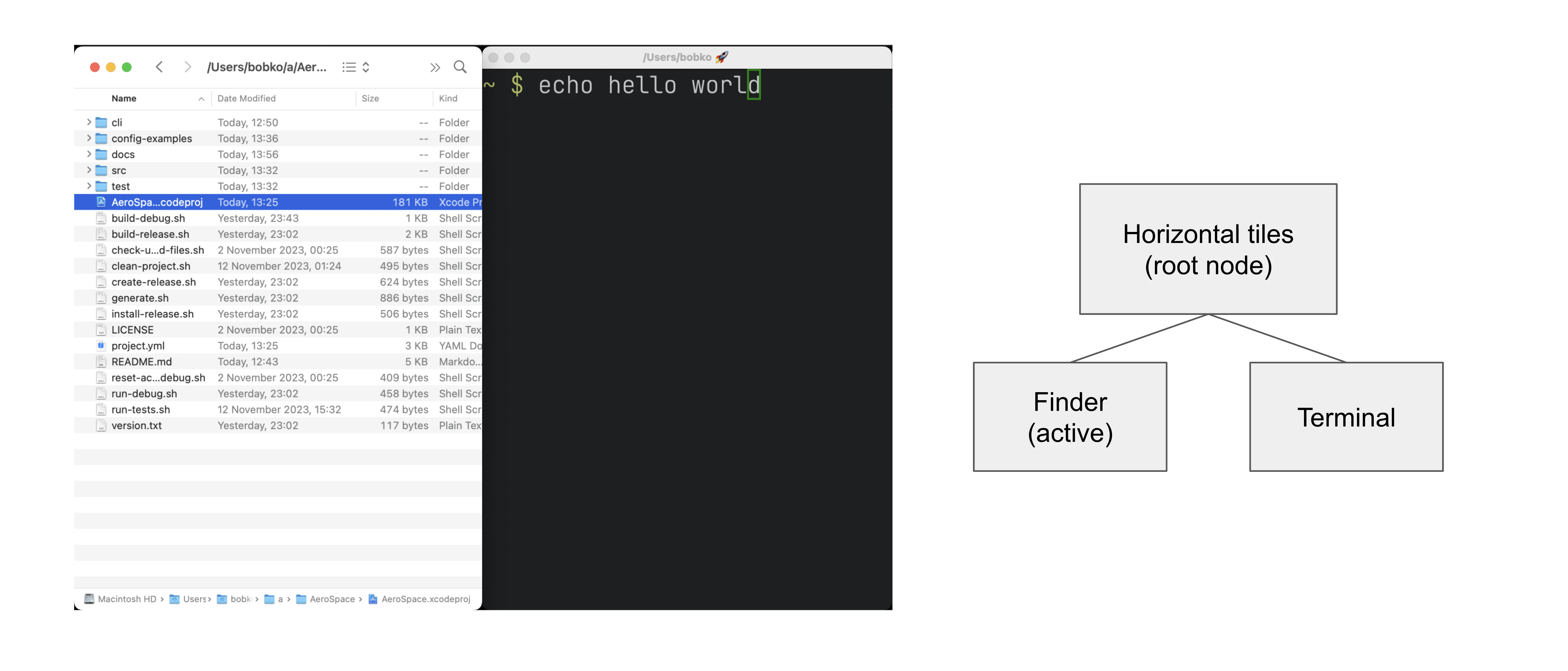
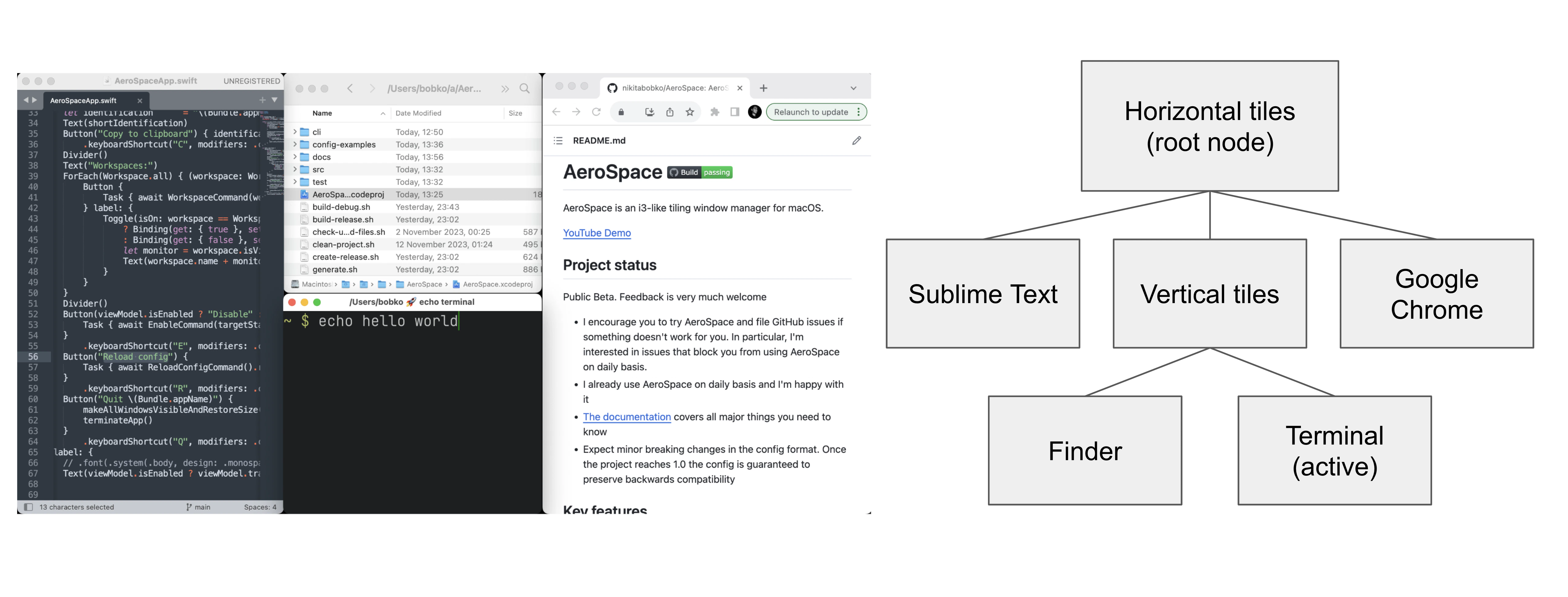
When we say “layout of the window”, we refer to the layout of the window’s parent container. It’s easier to understand tree tiling model by looking at examples .Simple tree structure. Two windows side-by-side .Complex tree structure You can nest containers as deeply as you want to. You can navigate in the tree in 4 possible cardinal directions (left, down, up, right). You use focus command to do that. The tree structure can be changed with three commands:
  1. move
  2. join-with
  3. split (it’s for compatibility with i3. Please prefer join-with over split)

Layouts

In total, FlightDeck provides 4 possible layouts:
  • h_tiles horizontal tiles (in i3, it’s called “horizontal split”)
  • v_tiles vertical tiles (in i3, it’s called “vertical split”)
  • h_accordion horizontal accordion (analog of i3’s “tabbed layout”)
  • v_accordion vertical accordion (analog of i3’s “stacked layout”)
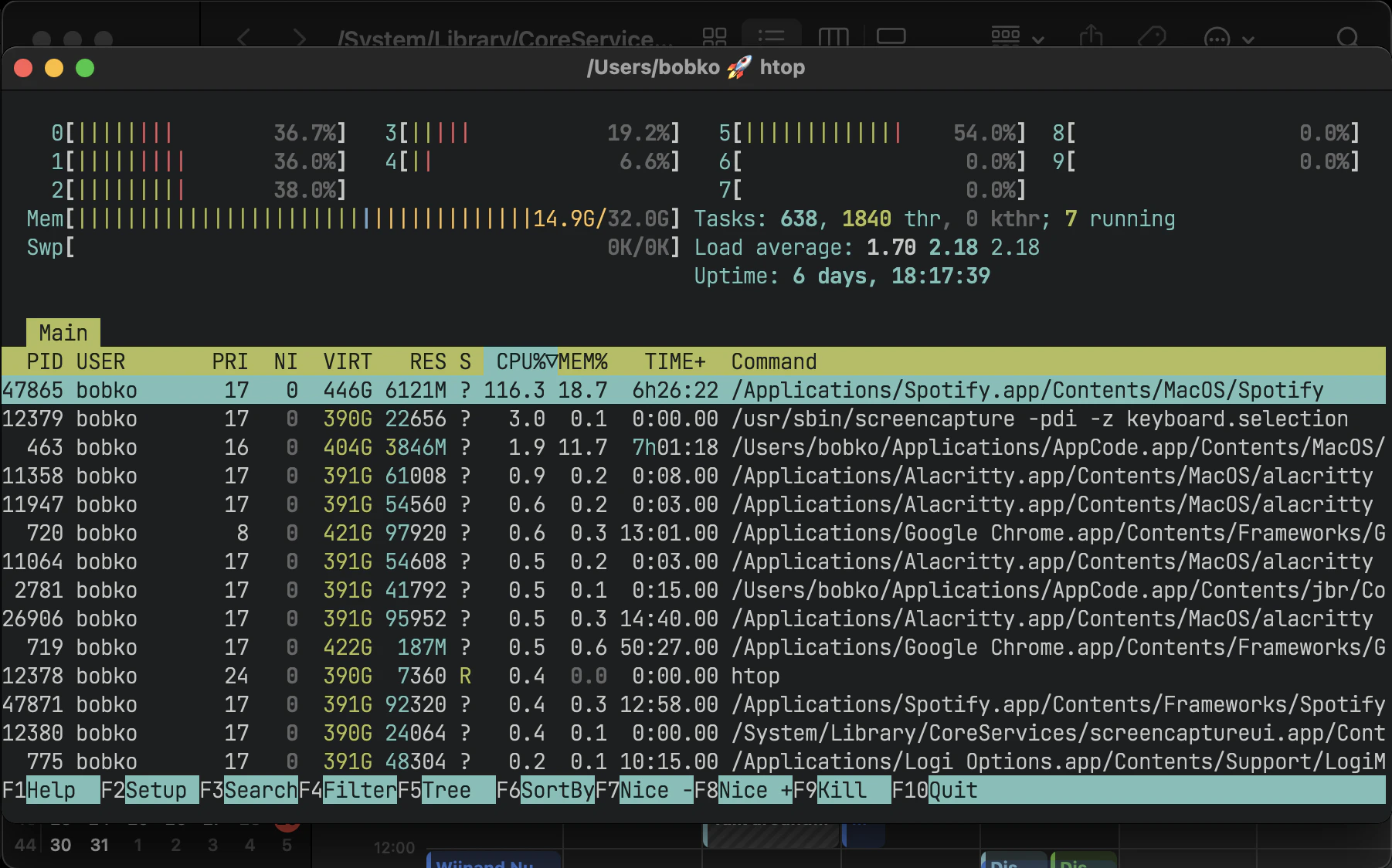
From the previous section, you’re already familiar with the tiles layout. Accordion is a layout where windows are placed on top of each other.
  • The horizontal accordion shows left and right paddings to visually indicate the presence of other windows in those directions.
  • The vertical accordion shows top and bottom paddings to visually indicate the presence of other windows in those directions.
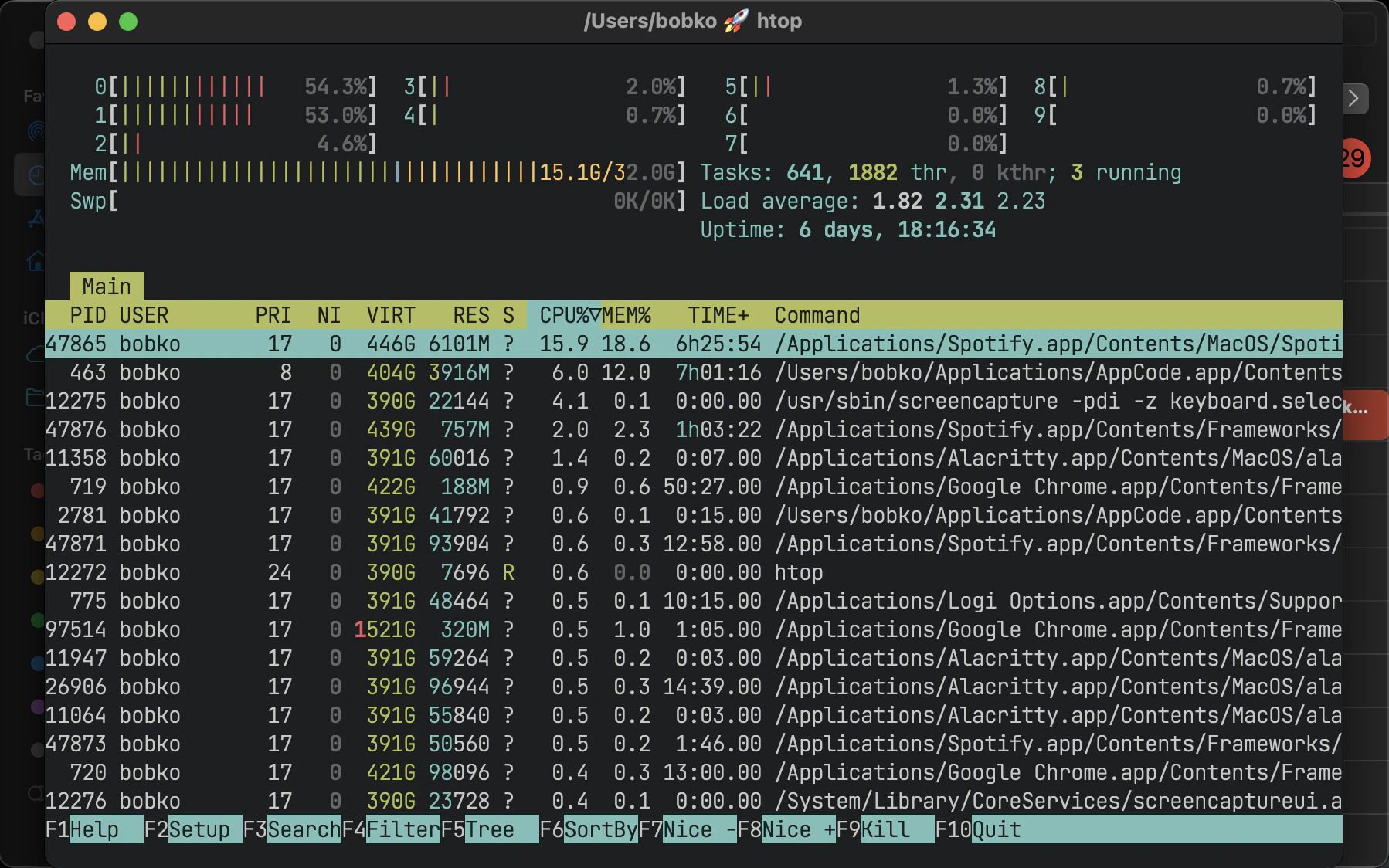
.Horizontal accordion .Vertical accordion Just like in a tiles layout, you can use the focus command to navigate an accordion layout. You can navigate the windows in an h_accordion by using the focus (left|right) command. While in a v_accordion, you can navigate the windows using the focus (up|down) command. Accordion padding is configurable via accordion-padding option.

Normalization

By default, FlightDeck does two types of tree normalizations:
  1. Containers that have only one child are “flattened”. The root container is an exception, it is allowed to have a single window child. Configured by enable-normalization-flatten-containers
  2. Containers that nest into each other must have opposite orientations. Configured by enable-normalization-opposite-orientation-for-nested-containers
Example 1 According to the first normalization, such layout isn’t possible:
h_tiles (root node)
└── v_tiles
    └── window 1
it will be immediately transformed into
v_tiles (new root node)
└── window 1
Example 2 According to the second normalization, such layout isn’t possible:
h_tiles
├── window 1
└── h_tiles
    ├── window 2
    └── window 3
it will be immediately transformed into
h_tiles
├── window 1
└── v_tiles
    ├── window 2
    └── window 3
Normalizations make it easier to understand the tree structure by looking at how windows are placed on the screen. Though you can disable normalizations by placing these lines to your config:
enable-normalization-flatten-containers = false
enable-normalization-opposite-orientation-for-nested-containers = false
Unless you’re hardcore i3 user who knows what they are doing, it’s recommended to keep the normalizations enabled.

Floating windows

Normally, floating windows are not considered to be part of the tiling tree. But it’s not the case with focus command. From focus command perspective, floating windows are part of tiling tree. The floating window parent container is determined as the smallest tiling container that contains the center of the floating window. This technique eliminates the need for an additional binding for focusing floating windows.

Emulation of virtual workspaces

Native macOS Spaces have a lot of problems
  • The animation for Spaces switching is slow ** You can’t disable animation for Spaces switching (you can only make it slightly faster by turning on Reduce motion setting, but it’s suboptimal)
  • You have a limit of Spaces (up to 16 Spaces with one monitor)
  • You can’t create/delete/reorder Space and move windows between Spaces with hotkeys (you can only switch between Spaces with hotkeys)
  • Apple doesn’t provide public API to communicate with Spaces (create/delete/reorder/switch Space and move windows between Spaces)
Since Spaces are so hard to deal with, FlightDeck reimplements Spaces and calls them “Workspaces”. The idea is that if the workspace isn’t active then all of its windows are placed outside the visible area of the screen, in the bottom right or left corner. Once you switch back to the workspace, (e.g. by the means of workspace command, or cmd + tab) windows are placed back to the visible area of the screen. When you quit the FlightDeck or when the FlightDeck detects that it’s about to crash, FlightDeck will place all windows back to the visible area of the screen. FlightDeck shows the name of currently active workspace in its tray icon (top right corner), to give users a visual feedback on what workspace is currently active. The intended workflow of using FlightDeck workspaces is to only have one macOS Space (or as many monitors you have, if Displays have separate Spaces is enabled) and don’t interact with macOS Spaces anymore.
For better or worse, macOS doesn’t allow to place windows outside the visible area entirely. You will still be able to see a 1 pixel vertical line of “hidden” windows in the bottom right or left corner of your screen. That means, that if FlightDeck crashes badly you will still be able to manually “unhide” the windows by dragging these few pixels to the center of the screen.If you want to minimize the visibility of hidden windows, it’s recommended to place Dock in the bottom (and additionally turn automatic hiding on)

Proper monitor arrangement

Since FlightDeck needs a free space to hide windows in, please make sure to arrange monitors in a way where every monitor has free space in the bottom right or left corner. (System Settings -> Displays -> Arrange...) If you fail to arrange your monitors properly, you will see parts of hidden windows on other monitors. .Bad monitor arrangement. Monitor 2 doesn’t have free space in either of the bottom corners .Good monitor arrangement. Every monitor has free space in either of the bottom corners .Bad monitor arrangement. Monitor 1 doesn’t have free space in either of the bottom corners .Good monitor arrangement. Every monitor has free space in either of the bottom corners

A note on mission control

For some reason, mission control doesn’t like that FlightDeck puts a lot of windows in the bottom right corner of the screen. Mission control shows windows too small even when there is enough space to show them bigger. There is a workaround. You can enable Group windows by application setting:
defaults write com.apple.dock expose-group-apps -bool true && killall Dock
(or in System Settings: System Settings -> Desktop & Dock -> Group windows by application). For whatever weird reason, it helps.

A note on ‘Displays have separate Spaces

There is an observation that macOS works better and more stable if you disable Displays have separate Spaces. (It’s enabled by default) People report all sorts of weird issues related to focus and performance when this setting is enabled:
  • Wrong window may receive focus in multi-monitor setup: #101 (Bug in Apple API)
  • Wrong borderless Alacritty window may receive focus in single monitor setup: #247 (Bug in Apple API)
  • Performance issues: #333
  • macOS randomly switches focus back: #289
When Displays have separate Spaces is enabled, moving windows between monitors causes windows to move between different Spaces which is not correctly handled by the public APIs FlightDeck uses, apparently, these APIs are not aware about Spaces existence. Spaces are just cursed in macOS. The less Spaces you have, the better macOS behaves.
Displays have separate Spaces’ is enabledDisplays have separate Spaces’ is disabled
Is it possible for window to span across several monitors?❌ No. macOS limitation👍 Yes
Overall stability and performance❌ Weird focus and performance issues may happen (see the list above)👍 Public Apple API are more stable (which in turn affects FlightDeck stability)
When the first monitor is in fullscreen👍 Second monitor operates independently❌ Second monitor is unusable black screen
macOS status bar …… is displayed on both monitors… is displayed only on main monitor
If you don’t care about macOS native fullscreen in multi-monitor setup (which is itself clunky anyway, since it creates a separate Space instance), I recommend disabling Displays have separate Spaces. You can disable the setting by running:
defaults write com.apple.spaces spans-displays -bool true && killall SystemUIServer
(or in System Settings: System Settings -> Desktop & Dock -> Displays have separate Spaces). Logout is required for the setting to take effect.

Callbacks

on-window-detected callback

You can use on-window-detected callback to run commands every time a new window is detected. Here is a showcase example that uses all the possible configurations:
[[on-window-detected]]
    if.app-id = 'com.apple.systempreferences'
    if.app-name-regex-substring = 'settings'
    if.window-title-regex-substring = 'substring'
    if.workspace = 'workspace-name'
    if.during-aerospace-startup = true
    check-further-callbacks = true
    run = ['layout floating', 'move-node-to-workspace S']  # The callback itself
run commands are run only if the detected window matches all the specified conditions. If no conditions are specified then run is run every time a new window is detected. Several callbacks can be declared in the config. The callbacks are processed in the order they are declared. By default, the first callback that matches the criteria is run, and further callbacks are not considered. (The behavior can be overridden with check-further-callbacks option) Available window conditions are:
Condition TOML keyCondition description
if.app-idApplication ID exact match of the detected window
if.app-name-regex-substringApplication name case insensitive regex substring of the detected window
if.window-title-regex-substringWindow title case insensitive regex substring of the detected window
if.during-aerospace-startup a- If true then run the callback only during FlightDeck startup. - If false then run callback only NOT during FlightDeck startup. - If not specified then the condition isn’t checked
if.workspaceWindow’s workspace name exact match
  • if.during-aerospace-startup = true is useful if you want to do the initial app arrangement only on startup.
  • if.during-aerospace-startup = false is useful if you want to relaunch FlightDeck, but the callback has side effects that you don’t want to run on every relaunch. (e.g. the callback opens new windows)
There are several ways to know app-id: IMPORTANT: Some windows initialize their title after the window appears. window-title-regex-substring may not work as expected for such windows Examples of automations:
  • Assign apps on particular workspaces
[[on-window-detected]]
    if.app-id = 'org.alacritty'
    run = 'move-node-to-workspace T' # mnemonics T - Terminal

[[on-window-detected]]
    if.app-id = 'com.google.Chrome'
    run = 'move-node-to-workspace W' # mnemonics W - Web browser

[[on-window-detected]]
    if.app-id = 'com.jetbrains.intellij'
    run = 'move-node-to-workspace I' # mnemonics I - IDE
  • Make all windows float by default
[[on-window-detected]]
    check-further-callbacks = true
    run = 'layout floating'

on-focus-changed callbacks

You can track focus changes using the following callbacks: on-focus-changed and on-focused-monitor-changed.
  • on-focus-changed is called every time focused window or workspace changes.
  • on-focused-monitor-changed is called every time focused monitor changes.
A common use case for the callbacks is to implement “mouse follows focus” behavior. All you need is to combine the callback of your choice with move-mouse command:
on-focused-monitor-changed = ['move-mouse monitor-lazy-center'] # Mouse lazily follows focused monitor (default in i3)
# or
on-focus-changed = ['move-mouse window-lazy-center'] # Mouse lazily follows any focus (window or workspace)
You shouldn’t rely on the order callbacks are called, since it’s an implementation detail and can change from version to version. The callbacks are “recursion resistant”, which means that any focus change within the callback won’t retrigger the callback. Changing the focus within these callbacks is a bad idea anyway, and the way it’s handled will probably change in future versions.

exec-on-workspace-change callback

exec-on-workspace-change callback allows to run arbitrary process when focused workspace changes. It may be useful for integrating with bars.
# Notify Sketchybar about workspace change
exec-on-workspace-change = ['/bin/bash', '-c',
    'sketchybar --trigger aerospace_workspace_change FOCUSED=$AEROSPACE_FOCUSED_WORKSPACE'
]
Besides the exec.env-vars, the process has access to the following environment variables:
  • AEROSPACE_FOCUSED_WORKSPACE - the workspace user switched to
  • AEROSPACE_PREV_WORKSPACE - the workspace user switched from
The AEROSPACE_* names and commonly used aerospace_workspace_change event name are intentionally retained for compatibility with existing AeroSpace configurations and integrations. For a more elaborate example on how to integrate with Sketchybar see /goodies#show-flightdeck-workspaces-in-sketchybar

Multiple monitors

  • The pool of workspaces is shared between monitors
  • Each monitor shows its own workspace. The showed workspaces are called “visible” workspaces
  • Different monitors can’t show the same workspace at the same time
  • Each workspace (even invisible, even empty) has a monitor assigned to it
  • By default, all workspaces are assigned to the “main” monitor (“main” as in System -> Displays -> Use as)
When you switch to a workspace:
  1. FlightDeck takes the assigned monitor of the workspace and makes the workspace visible on the monitor
  2. FlightDeck focuses the workspace
You can move workspace to a different monitor with move-workspace-to-monitor command.

Observation

The idea of making the pool of workspaces shared is based on the observation that most users have a limited set of workspaces on their secondary monitors. Secondary monitors are frequently dedicated to specific tasks (browser, shell), or for monitoring various activities such as logs and dashboards. Thus, using one workspace per secondary monitor and “the rest” on the main monitor often makes sense.
The only difference between FlightDeck and i3 is switching to empty workspaces. When you switch to an empty workspace, FlightDeck puts the workspace on an assigned monitor; i3 puts the workspace on currently active monitor.
  • I find that FlightDeck model works better with the observation listed above.
  • FlightDeck model is more consistent (it works the same for empty workspaces and non-empty workspaces)

Assign workspaces to monitors

You can use workspace-to-monitor-force-assignment syntax to assign workspaces to always appear on particular monitors
[workspace-to-monitor-force-assignment]
    1 = 1                            # Monitor sequence number from left to right. 1-based indexing
    2 = 'main'                       # Main monitor
    3 = 'secondary'                  # Non-main monitor in case when there are only two monitors
    4 = 'built-in'                   # Case insensitive regex substring
    5 = '^built-in retina display$'  # Case insensitive regex match
    6 = ['secondary', 'dell']        # You can specify multiple patterns.
                                     #   The first matching pattern will be used
  • Left hand side of the assignment is the workspace name
  • Right hand side of the assignment is the monitor pattern
Supported monitor patterns:
  • main - “Main” monitor (“main” as in System Settings -> Displays -> Use as)
  • secondary - Non-main monitor in case when there are only two monitors
  • <number> (e.g. 1, 2) - Sequence number of the monitor from left to right. 1-based indexing
  • <regex-pattern> (e.g. dell.*, built-in.*) - Case insensitive regex substring pattern
You can specify multiple patterns as an array. The first matching pattern will be used move-workspace-to-monitor command has no effect for workspaces that have monitor assignment

Dialog heuristics

  • Apple provides accessibility API for apps to let others know which of their windows are dialogs
  • A lot of apps don’t implement this API or implement it improperly
Even some Apple dialogs don’t implement the API properly. (E.g. Finder “Copy” progress window doesn’t let others know that it’s a dialog) FlightDeck uses the API to gently ask windows whether they are dialogs, but FlightDeck also applies some heuristics. For example, windows without a fullscreen button (NB! fullscreen button and maximize button are different buttons) are generally considered dialogs, excluding terminal apps (WezTerm, Alacritty, iTerm2, etc.). Windows that are recognized as dialogs are floated by default. If you find that some windows are not handled properly, you’re welcome to create a PR that improves the heuristic. It’s fine to hardcode special handling for popular applications, FlightDeck already does it. Please see isDialogHeuristic function in FlightDeck sources. You can also use on-window-detected to force tile or force float all windows of a particular application:
  1. Force tile all the windows (or windows of a particular app)
[[on-window-detected]]
    if.app-id = '...'
    run = 'layout tiling'
  1. Force float all the windows (or windows of a particular app)
[[on-window-detected]]
    if.app-id = '...'
    run = 'layout floating'

Common pitfall: keyboard keys handling

If you can’t make FlightDeck handle some keys in your config, please make sure that you don’t have keys conflict with other software that might listen to global keys (e.g. skhd, Karabiner-Elements, Raycast)